


Minda AI agent safety: what waits for your OK
Minda AI agent safety starts with one default rule. The agent clicks, types and fills forms on its own in hidden tabs. It stops for your OK before any press that pays, buys or places an order, and before it types card or bank details. That setting, Ask before paying, is on by default.
Everything short of the payment runs without asking while Auto mode is on, which it is out of the box. Opening product pages, setting filters, filling in a shipping address: the agent does all of it. The split is the point of the design. You hand over the tedious clicking and keep the moment money moves.
What the agent does before a payment decision
Minda is a desktop AI agent app with its own Chromium browser, not an extension bolted onto someone else’s. Give it a task in the chat and it works in tabs you don’t see, so the page you’re reading stays in front. A live checklist shows its plan as it goes, and opening its tab lets you watch any step.
Normal browser actions versus approval actions
Most clicks commit you to nothing. Opening a product page, narrowing search filters, typing a delivery address or picking a shipping speed are preparation, and the agent handles them freely.
The pause is narrow on purpose. It guards money, and only money. Changing a subscription plan, sending a message or submitting a contact form doesn’t trigger it, so those need one of the settings described further down or your own eyes.
Why hidden tabs do not mean hidden decisions
A hidden tab keeps the agent from pulling pages in front of you every few seconds. It doesn’t take away your way in. When an order or payment form comes up, the agent waits instead of finishing quietly, and you look at the page before anything is charged.
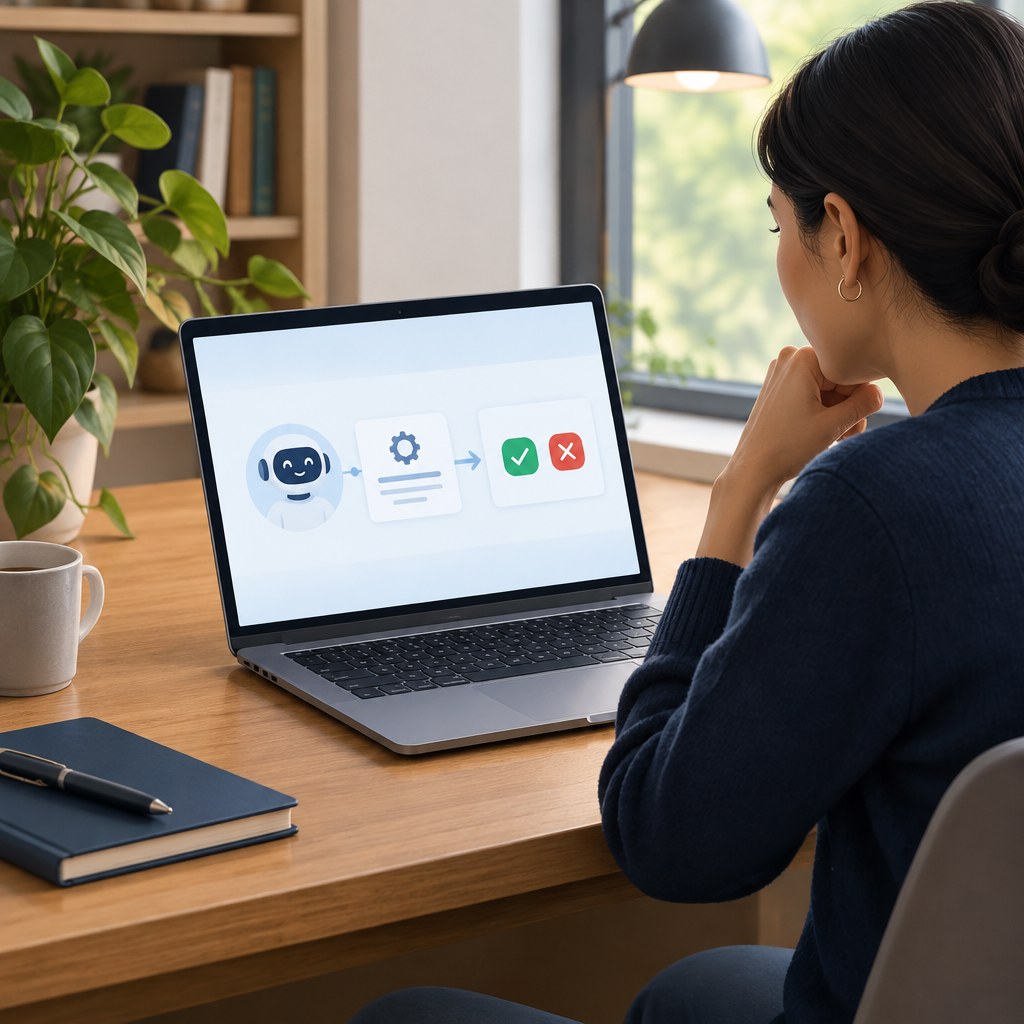
What triggers the ask before paying safeguard
The rule looks at what a step does, not what its button says. If pressing it would move money or hand over payment details, the agent stops. Steps before that point may have run on their own, and that’s fine. This is the step where browsing turns into spending.
Actions that pause
- The final press that places an order once the cart and delivery choices are set.
- Typing a credit card number or its security code into a checkout form.
- Entering a bank account or routing number.
- A Pay now or Confirm purchase button that charges a payment method already on file.
Checkout flows vary. A button labeled Continue is plain navigation on one store and the final purchase on another. Minda judges the step that charges you, rather than treating every button and form as equally risky.
Two settings that widen the pause
Careful mode, off by default, makes the agent stop before any step that sends, posts, deletes, uploads, types a password or gives someone access, even with Auto on. It also holds the agent’s own questions for you. A paid team can require it for every member.
Leave it for my review works from your words. Write “draft”, “for my review” or “do not submit” in the task, or switch on Leave sends for my review for a saved agent. Then a press that finishes the work, such as Submit, Send, Post, Publish or Approve, waits for you in tasks and schedules. In a chat it waits while Auto is off or Careful is on.
If an agent writes, posts or deletes in your name, turn Careful on. The payment pause alone was never meant to cover those steps. Legal terms, privacy choices and account changes outside both settings still need your own reading.
A safe way to use Minda for a purchase task
Take a routine job: restocking printer paper and toner for a Brooklyn office from the supplier it already uses. The searching, comparing and cart building are tedious, and none of it should need you.
Use this sequence
- Name the supplier, the items, the quantities and any spending cap in the request. The agent doesn’t enforce a budget for you, so the cap is something you check at the end.
- Let Minda search, add the items and fill in the delivery details.
- When it pauses, read the merchant, the total, taxes, the shipping choice and any recurring or return terms on the screen.
- Approve only if the order matches what you asked for. Otherwise stop the task, or take over and fix the cart yourself.
Sites with several review screens are where this saves the most time. The pause is a checkpoint, not a verdict. It doesn’t tell you the merchant is legitimate, the price is fair or the product is the right one, so compare the final cart with your original request before you approve.
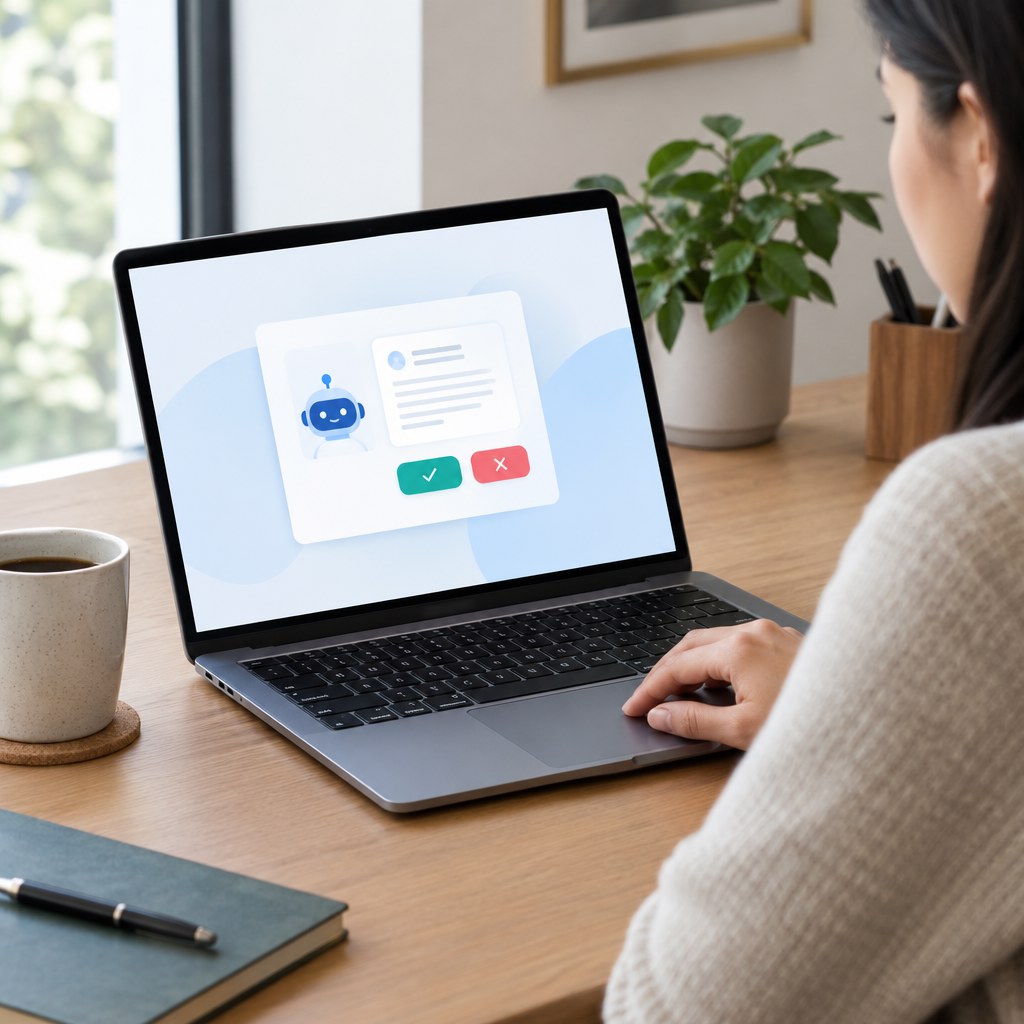
Control, visibility, and privacy limits
Stop ends a run at any moment. Take over hands you the tab, which is how logins and CAPTCHAs get done, and you can hand it back to the agent afterward. A good setup always has that exit, not just a confirmation box.
Review the action log
The action log records the tool used, the site and the result of each step. It never stores page text or anything you or the agent typed. That makes it good for retracing a run, such as which site it went to and which step failed, and useless as a copy of what a page showed.
Screen access, workspaces and site rules
Looking at your screen works by permission. With Auto off, the agent asks each time it wants to look at your screen or an app window. With Auto on, Minda gives that OK itself and marks the step Auto. The Computer level in settings (Off, Look only, Ask each step or Full control) caps how far it may go outside the browser.
On the web side, the agent works in the workspace you name, with that workspace’s own cookies and sign-ins. Per-site allow and block rules, plus a switch for each family of tools, narrow it further. Block your bank’s site for the agent, for example, and it won’t go there.
Practical boundaries that reduce mistakes
The pause buys you time to read. It can’t spot a bad deal for you.
Before you approve, check:
- The workspace, the signed-in account and the merchant’s domain.
- Items, quantities, delivery details and the total at checkout.
- Any recurring plan, financing offer or add-on that crept in.
- The payment method, and whether this order is the one you meant.
- Return, cancellation and expense terms that matter to you.
Unsure about anything on that list? Stop or take over rather than approving under time pressure.
Frequently asked questions
Can I turn off Ask before paying?
Yes. With it off, a run can complete a payment without waiting, including a scheduled one, so leave it on unless you have a narrow, well-tested reason.
What happens if a scheduled task reaches a payment?
A background task that hits the pause waits in Tasks and posts a notice. Nothing is charged until you open it and approve.
Will the agent accept cookie banners or newsletter pop-ups?
It rejects cookie banners and declines newsletter, app and notification pop-ups. It never accepts, subscribes or allows, and it leaves CAPTCHAs, age checks and paywalls to you.
What if Minda restarts in the middle of a task?
The task can resume after the restart instead of starting over. Check its checklist before you let it continue, since a page may have changed in the meantime.
Keep the final decision in your hands
Try a small order on a store you use and note where the pause lands. Then go through your saved agents. Any agent that drafts mail or posts for you is a candidate for Leave sends for my review.
- Can You Switch Browsers Without Losing Bookmarks, Passwords, and History?

- AI Browser vs Browser Extension: Which Should You Use?

- Are AI Browsers Safe for Online Banking, Shopping, and Personal Accounts?

- Can AI Fill Out Online Forms for You? What Works and What Needs Approval

- Is an AI Browser Worth Switching To? What Everyday Users Should Know

- How Developers Can Connect Coding Agents to a Real Browser

- How Minda Syncs Browser Data Across Computers

- How to Prepare AI-Assisted Research Reports With Verifiable Sources

- Minda Free vs Pro vs Max: Features, Credits, and Plans

- How to Organize Research With Browser Notes and Highlights

- Claude Fable 5.5: The Azure Leak, the Viral Demos and What Is Confirmed

- Minda Privacy Explained: What Stays on Your Computer?

- How AI Agents Can Help SEO Teams With Research and Reporting

- How Minda Combines AI Chat, Research, and Browser Actions

- How to Use Your Own AI Models and API Keys in Minda

- How to Automate Website Monitoring and Routine Checks

- October 2026 Security Releases: Node.js, Go, GitLab, NGINX and eMudhra, Checked

- PHP Security Update, October 2026: CVE-2026-109618 and CVE-2026-109619 Explained

- How to Extract Website Data Into CSV or Excel Without Copying Manually

- Browser AI Agents vs RPA: Which Fits Everyday Work?

- How to Get Started With Minda on Windows, macOS, and Linux

- How AI Agents Help Digital Agencies Manage Multiple Clients

- How Minda Handles AI Actions That Require Your Approval

- How to Use AI for Web Research Without Losing Track of Sources

- How Minda Workspaces Keep Your Accounts Separate

- AI Agents for Freelancers: Practical Ways to Reduce Repetitive Work

- How to Manage Multiple Accounts Without Constantly Switching Logins

- How to Automate Repetitive Browser Tasks With an AI Agent

- Desktop AI Agent Platform: Features, Real Workflows, and How to Choose

- What Is a Super Intelligent Agent?

- What Is a Super Intelligent Browser?

- AI Agent Apps: What Can They Actually Do?

- Can Minda Use Your Computer Like a Human? A Simple Guide for Everyday Users

- Can an AI Agent Plan Your Entire Trip? How Minda Helps From Research to Booking

- Can Minda Manage Your Social Media for You? From Voice Idea to Multi-Platform Posting

- Can an AI Agent Edit Your Website? How Minda Works With WordPress, Shopify and Static Sites

- What Can Minda Do? 5 Core AI Capabilities Explained

- What Is a Super Intelligent Platform?

- AI Agent vs AI Assistant: What Is the Difference?

- AI Browser vs Traditional Browser: What Is the Difference?

- What Is an AI Agent? How AI Agents Complete Tasks for You

- What Is a Desktop AI Agent? A Simple Guide to AI That Works on Your Computer

- What Is an AI Browser? How AI Browsers Work in 2026