
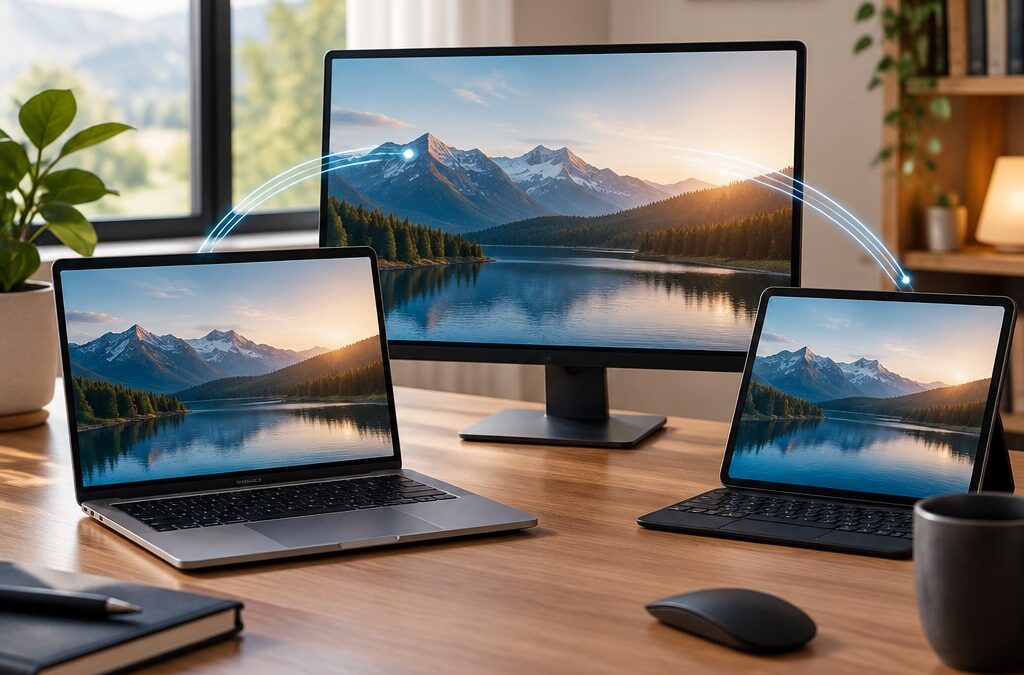
How Minda syncs browser data across your computers
Minda browser sync starts as soon as you sign in to your Minda account. Your bookmarks, history, saved passwords, notes, highlights, skills, AI chats, workspaces and browser settings then show up on every computer signed in to that account. Open tabs, cookies, API keys, extensions and scheduled tasks never sync. They stay on the computer where you made them.
Minda is the personal AI agent app for your computer, with its own Chromium browser, and sync covers the agent’s side of your work too. A chat you saved on the desktop is in the laptop’s chat history, and a skill you wrote there runs on both.
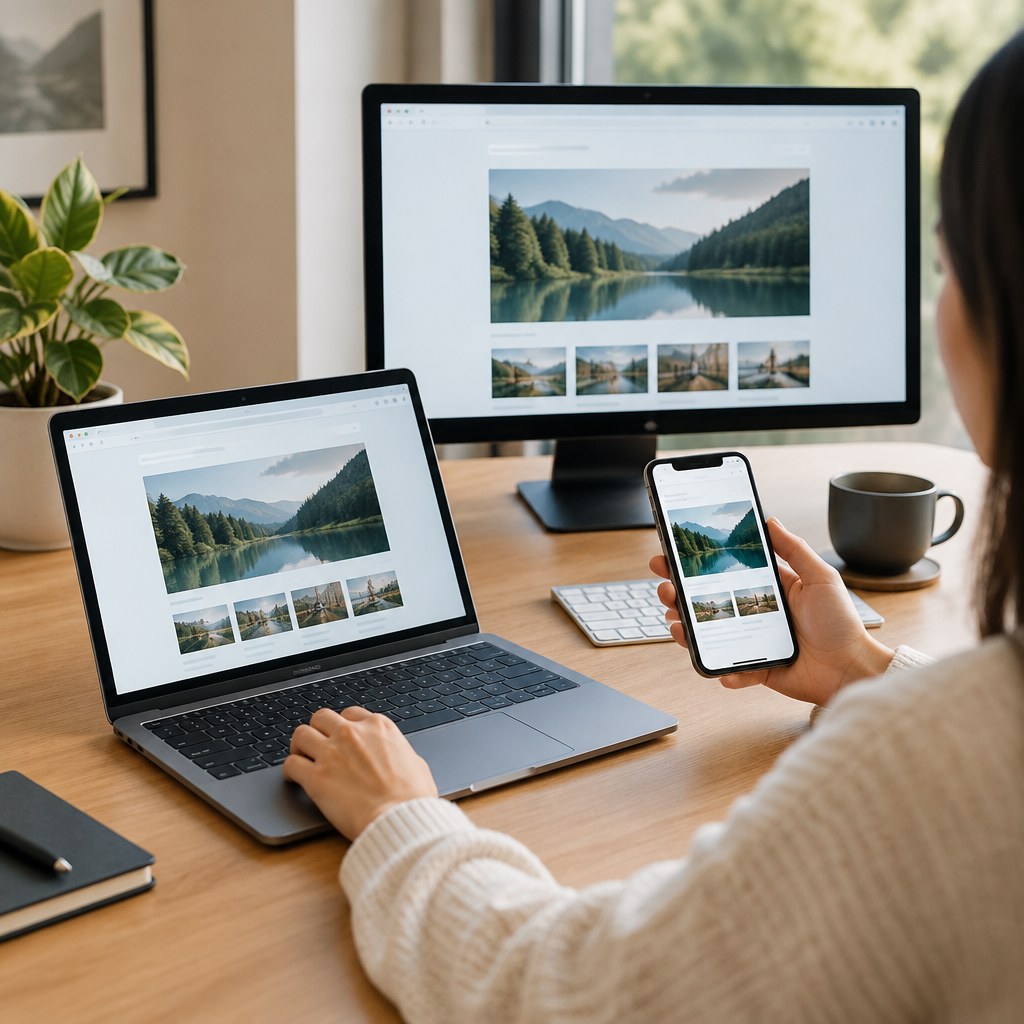
Cloud sync and local browser data are different layers
Minda keeps data in two layers. The account layer is what syncs, and the device layer never leaves the computer it was created on. One choice in Settings → Account → Sync decides how a computer behaves: Synced with your account, or This computer only. The second uploads nothing and receives nothing, signed in or not, while your Minda account keeps holding your plan, your credits and any teams you belong to.
What syncs
There are no per-category switches. When sync is on, every kind named above travels together, bookmark folders and saved passwords included. The Sync card shows each kind as a chip with this computer’s count. Comparing those counts is the quickest way to tell whether a second machine has caught up.
What stays on one computer
Cookies are the one most people notice. They hold your logins, so every site asks you to sign in again on a new machine, even though your saved password is there to fill in. A schedule runs only on the computer that created it. Downloaded files and the permissions your operating system granted are local too. Sync moves your browser data, not your disk, and two computers will not end up identical.
Signing in is what starts sync. On a computer you do not own, pick This computer only in the sign-in dialog, before anything uploads or downloads.
What happens when you sign in on another computer
Install Minda on the second computer and sign in with the same account. Nothing else needs turning on. When one computer changes something, the server sends your other signed-in computers a notice, and they pull the change straight away, so an edit usually lands in seconds. An account that uses its own sync passphrase asks for it once on each new computer.
Take a folder of client bookmarks built on an office desktop. Sign in on a laptop at home and the folder is on the bookmarks bar, with the client dashboard’s password saved and ready. The dashboard still wants you to log in, because the session cookie stayed at the office. The PDFs you downloaded there did not come along either.
Edits travel in both directions. Delete a bookmark folder on the laptop and it disappears from the desktop too. Before a big cleanup, work on the computer whose copy you trust, and make an encrypted backup first if the data would be hard to rebuild.
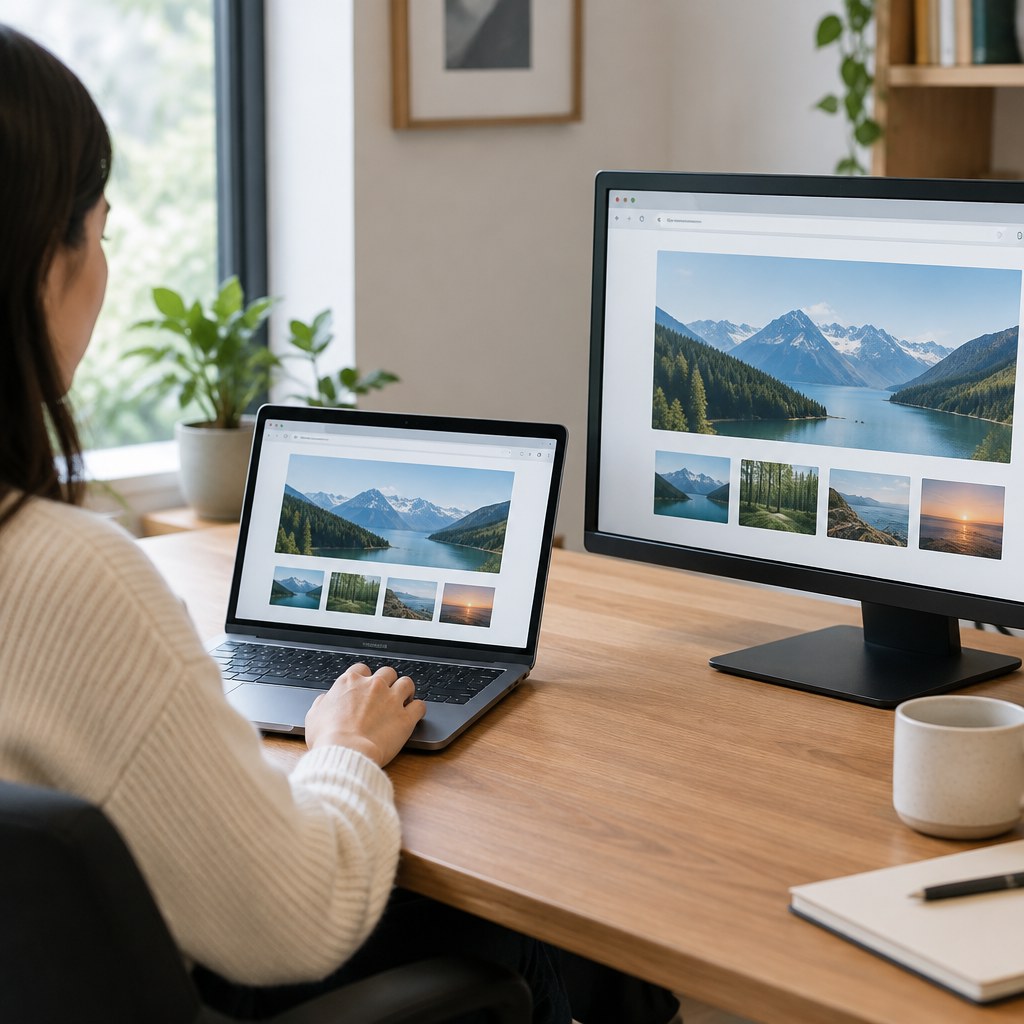
Decide which computers should hold your data
Because sync has no category switches, the decision you make is per computer. A home laptop, a managed office desktop and a travel machine can each get a different answer. Ask whether you would be comfortable seeing all of your synced data on that screen.
Bookmarks and navigation
Every synced computer gets the same bookmarks bar, research folders and links to internal tools. Look through shared folders before you sign in on a managed office machine, since they will appear there too.
Preferences and settings
Browser settings follow you, which keeps the working setup familiar. A few machine-bound choices, such as the download folder, stay local, and company policies or display hardware can still make two machines feel different.
Keep one computer local
Set This computer only on a machine that holds sensitive experiments or should never receive the rest of your data. Nothing leaves it and nothing arrives from your other computers.
The setting can be changed later. Switch a computer to Synced with your account and its data joins the account from that moment.
A practical migration checklist for a new computer
A new machine is the moment to sort account data from local work. Go through these before you retire the old computer or trust the new one with a deadline:
- Update Minda on both computers so their Sync cards list the same kinds of data.
- Check that both are signed in to the intended account, especially if you keep work and personal accounts apart.
- Make an encrypted .minda backup on the old computer, protected by a password you choose.
- Copy downloads and other local files by hand, since sync leaves them where they are.
- List your extensions and have your AI provider keys ready. Neither syncs, and scheduled tasks need setting up again too.
- Sign in on the new computer and wait until its Sync card counts match the old one.
- Run one agent workflow you depend on, with the new machine’s permissions and integrations.
Do not count the first sync as a backup. Sync copies a deletion as faithfully as an addition, so a mistake on one computer reaches all of them within seconds. The .minda file is the copy that survives that kind of error, along with a dead drive or a lost laptop.
Security tradeoffs: convenience, control, and encryption choices
Every synced item is sealed on your computer with AES-256-GCM before it leaves. Who holds the key is the real choice. By default Minda’s server keeps it, wrapped with its own secret, which is why a plain sign-in is all a new computer needs. It also means Minda’s server can read what syncs. Set your own sync passphrase of at least 10 characters and it can’t: the sync becomes end-to-end. The cost is recovery. Forget that passphrase and the synced copy cannot be opened. Store it somewhere safe.
Selling or recycling the old computer takes two steps. Remove, under Your devices, only takes it off the list, and a computer that is still signed in keeps syncing. Use Sign out everywhere to end its session, then set a new sync passphrase so any key it kept stops working.
Protect the account itself with two-step sign-in, which asks for a code from an authenticator app each time you sign in. On a company machine, your organization’s rules come first. Minda’s team policies cover sync along with sites, extensions and AI providers, so an admin may have decided this for you already.
Common questions about Minda browser sync
Does Minda sync my open tabs?
No. Open tabs belong to the window they are in. To move one, send it from one computer to another, and it opens on the other machine.
Will my Minda workspaces appear on every computer?
Yes, by name, without its logins. Its cookies remain on the machine you logged in from, so on a fresh laptop each site in that workspace asks you to log in again. After that, the workspace keeps those sign-ins apart from your others as usual.
Is sync only on paid plans?
No. Free syncs the same data as the paid plans, and you can set your own passphrase on Free too.
Can I turn sync off after using it?
Yes. Switching a computer to This computer only stops it uploading. To clear the server’s copy as well, use Delete synced data, which removes everything synced from Minda’s server and turns sync off on that computer. Copies already on your computers stay on them.
Can I see synced data on my phone?
Yes, through the account page in your phone’s browser, which installs as an app. Sign in once, or scan the set-up QR code Minda shows on your computer. There is no app store version.
Make every device intentional
Open Settings → Account → Sync on the computer you use most, check what it holds, and decide where the next computer stands before you sign in on it.
- Can You Switch Browsers Without Losing Bookmarks, Passwords, and History?

- AI Browser vs Browser Extension: Which Should You Use?

- Are AI Browsers Safe for Online Banking, Shopping, and Personal Accounts?

- Can AI Fill Out Online Forms for You? What Works and What Needs Approval

- Is an AI Browser Worth Switching To? What Everyday Users Should Know

- How Developers Can Connect Coding Agents to a Real Browser

- How Minda Syncs Browser Data Across Computers

- How to Prepare AI-Assisted Research Reports With Verifiable Sources

- Minda Free vs Pro vs Max: Features, Credits, and Plans

- How to Organize Research With Browser Notes and Highlights

- Claude Fable 5.5: The Azure Leak, the Viral Demos and What Is Confirmed

- Minda Privacy Explained: What Stays on Your Computer?

- How AI Agents Can Help SEO Teams With Research and Reporting

- How Minda Combines AI Chat, Research, and Browser Actions

- How to Use Your Own AI Models and API Keys in Minda

- How to Automate Website Monitoring and Routine Checks

- October 2026 Security Releases: Node.js, Go, GitLab, NGINX and eMudhra, Checked

- PHP Security Update, October 2026: CVE-2026-109618 and CVE-2026-109619 Explained

- How to Extract Website Data Into CSV or Excel Without Copying Manually

- Browser AI Agents vs RPA: Which Fits Everyday Work?

- How to Get Started With Minda on Windows, macOS, and Linux

- How AI Agents Help Digital Agencies Manage Multiple Clients

- How Minda Handles AI Actions That Require Your Approval

- How to Use AI for Web Research Without Losing Track of Sources

- How Minda Workspaces Keep Your Accounts Separate

- AI Agents for Freelancers: Practical Ways to Reduce Repetitive Work

- How to Manage Multiple Accounts Without Constantly Switching Logins

- How to Automate Repetitive Browser Tasks With an AI Agent

- Desktop AI Agent Platform: Features, Real Workflows, and How to Choose

- What Is a Super Intelligent Agent?

- What Is a Super Intelligent Browser?

- AI Agent Apps: What Can They Actually Do?

- Can Minda Use Your Computer Like a Human? A Simple Guide for Everyday Users

- Can an AI Agent Plan Your Entire Trip? How Minda Helps From Research to Booking

- Can Minda Manage Your Social Media for You? From Voice Idea to Multi-Platform Posting

- Can an AI Agent Edit Your Website? How Minda Works With WordPress, Shopify and Static Sites

- What Can Minda Do? 5 Core AI Capabilities Explained

- What Is a Super Intelligent Platform?

- AI Agent vs AI Assistant: What Is the Difference?

- AI Browser vs Traditional Browser: What Is the Difference?

- What Is an AI Agent? How AI Agents Complete Tasks for You

- What Is a Desktop AI Agent? A Simple Guide to AI That Works on Your Computer

- What Is an AI Browser? How AI Browsers Work in 2026