

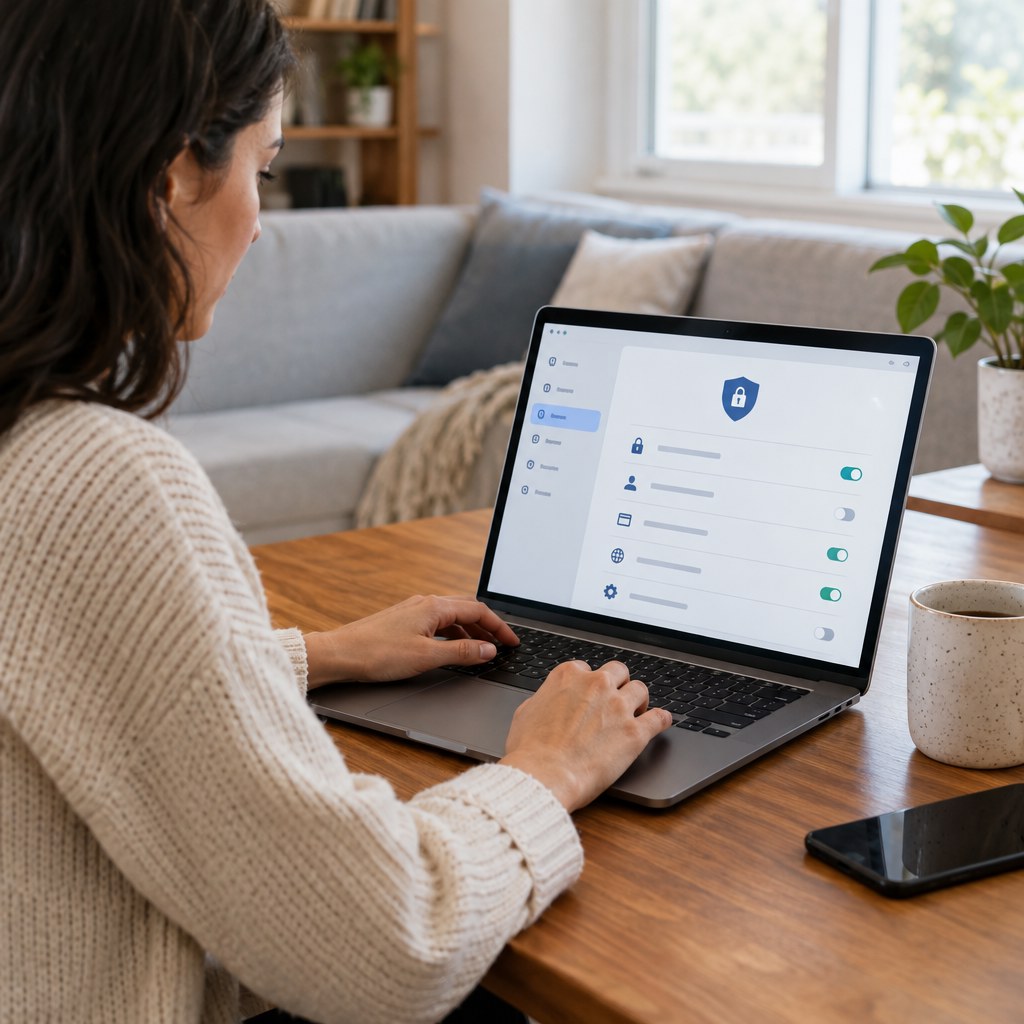
The direct answer: useful, but not automatically safe
AI browsers can be reasonable for low-risk research and shopping assistance, but they deserve more caution around money and identity. They combine ordinary browser risks with new questions: what the assistant can read, what it sends to a provider, and whether it can act inside a signed-in session. No AI feature makes online banking safer by itself. For banking, tax, health, work email, and primary personal accounts, use the official site directly and keep AI automation away from consequential actions.
Safety depends less on the label “AI browser” than on its architecture, permissions, and your habits. A normal browser app may simply offer a sidebar. An AI extension can inspect pages its permissions allow. A cloud AI feature may transmit selected page content, prompts, or attachments for processing. A desktop agent may operate a built-in browser and, if authorized, click, type, or navigate. Those are different trust decisions, even when the interface looks similarly conversational.
Start with the security protections a normal browser already provides
Modern browsers provide important baseline protections: encrypted connections when a site supports HTTPS, isolation between websites, warnings for deceptive pages, sandboxing, automatic updates, and controls for cookies and permissions. Banks and major retailers also add their own defenses, such as device recognition, fraud monitoring, login alerts, and multifactor authentication.
An AI layer does not replace any of those controls. It can sometimes make browsing more convenient, but it can also create new pathways for sensitive content to be read or acted on. The practical question is not whether an AI browser is “safe” in the abstract. Ask whether the specific feature needs access to the page, your session, saved credentials, downloads, or the ability to submit information.

Know what the AI feature can see and send
Before using an assistant on a sensitive page, review its privacy policy and settings. “AI” can mean very different things in practice. Some tools process prompts locally on your device. Others send prompts, page excerpts, screenshots, uploaded files, or browsing context to a remote provider. Some retain activity for history, quality review, or product improvement unless you change the setting.
Do not assume that a private browsing window prevents an AI service from receiving what you actively share with it. Private mode usually limits local history and cookies after a session; it does not automatically change an extension’s permissions, a provider’s data policy, or what you paste into a chat box.
Treat account numbers, one-time codes, tax documents, medical details, recovery codes, and full checkout pages as information you should not paste into an AI prompt unless you have confirmed exactly how that product handles data.
Extensions, cloud assistants, and desktop agents are not interchangeable
- Browser apps may use an AI sidebar while otherwise functioning like a conventional browser.
- AI extensions may request permission to read and change data on websites, sometimes across every page you visit.
- Cloud AI assistants can process information outside your device, depending on the feature and settings.
- Desktop agents may navigate websites and fill fields, creating more convenience but requiring more deliberate approval boundaries.
Review permissions when installing, and again after major updates. A tool that only summarizes selected text carries a different risk profile from one that can view every page and interact with forms.
Prompt injection is a real risk when an AI reads webpages
Prompt injection happens when instructions embedded in a webpage, email, document, or product listing attempt to influence an AI assistant. A malicious page might include hidden or visible text telling an agent to reveal private information, ignore your stated goal, open another website, or take an unnecessary action.
Traditional browsers generally display content but do not interpret page text as commands. An AI agent may do both. That makes it especially important not to let an agent freely operate while you are signed in to a bank, email inbox, password manager, cloud drive, payroll portal, or account recovery page.
Never treat a webpage, email, chat message, or AI-generated summary as authorization to change account settings, disclose information, approve a payment, or bypass a warning.
Even a well-designed agent can misunderstand ambiguous instructions. Keep the final review with the person who owns the account. Open the original page, check the address bar, read the recipient, amount, delivery details, and terms, then decide whether to proceed.
Which account tasks are lower risk, and which need a normal browser?
The table below offers a practical way to decide. It is not a guarantee of safety; it is a reminder to match the tool to the consequence if something goes wrong.
Use password managers and MFA as separate safeguards
A password manager remains one of the strongest practical protections for personal accounts because it helps create unique passwords and can reduce phishing risk by matching credentials to the correct website. Do not ask an AI assistant to generate, store, summarize, or repeat your master password, recovery key, or one-time verification code.
Multifactor authentication adds another check, but it does not make unsafe actions safe. An attacker may still try to persuade you to approve a login prompt, share a code, or authorize a transaction. Prefer phishing-resistant methods when your account offers them, and never approve an unexpected MFA request simply because a page or assistant suggests it.
For shopping, use payment methods with their own protections where appropriate, but still confirm the merchant and total before submitting. An AI tool should not be trusted to make a purchase decision for you, especially where subscriptions, financing, marketplace sellers, or nonrefundable items are involved.
How to evaluate an AI browser before trusting it
- Read the privacy policy for the exact browser, extension, or agent feature you plan to use.
- Check whether prompts, page content, screenshots, files, or browsing activity leave your device.
- Inspect permissions and remove access that is broader than the feature needs.
- Look for clear action approvals before purchases, payments, downloads, or account changes.
- Test the tool first in a low-risk workspace using non-sensitive websites.
- Keep software updated, use a password manager, and enable MFA directly with each service.
- Sign out of high-value accounts when you do not need them open.
It is also worth checking whether the product provides an activity log, a clear way to delete data, and understandable controls for history or cloud processing. Security settings should be easy to locate, not buried behind vague labels. If you cannot tell what a feature can access, do not give it access to sensitive accounts.
What this means for Minda and similar desktop AI agents
Minda is primarily a desktop AI agent app with its own Chromium browser, rather than only an AI browser. Its separate workspaces can help keep tasks organized, but workspace separation does not remove the need to protect sensitive sessions. Users should still decide which accounts, websites, and tasks deserve an AI-free workflow.
Minda asks for approval before payments, orders, and purchases. That is a useful control, but it should not be interpreted as confirmation before every possible form submission. Review any form before it is sent, particularly forms involving identity information, addresses, employment data, support requests, or account settings.
The local AI switch can help users choose when AI assistance is active, while the activity log can make actions easier to review. For a closer look at data considerations, see Minda privacy explained. Sync is end-to-end encrypted only when you use your own passphrase; it is not automatically end-to-end encrypted by default.
Minda also offers Tor browsing on Windows and Linux. Tor can add privacy in some situations, but it is not an anonymity guarantee and does not make risky websites, unsafe downloads, weak passwords, or harmful account actions safe. For more context on approval controls, read how Minda AI action approval works.
Frequently asked questions
Are AI browsers safe for online banking?
They are not automatically safe for online banking. The safer choice is typically the bank’s official app or a standard browser session with AI features and automation kept away from the banking page.
Can an AI browser see my passwords?
That depends on the product’s permissions and design. Avoid entering passwords into AI prompts, and use a reputable password manager rather than relying on an assistant to handle credentials.
Is an AI shopping assistant safe at checkout?
It may be useful before checkout for comparing products, but you should personally review the merchant, cart, address, payment method, total, and return terms on the original checkout page.
Does private browsing protect information shared with AI?
No. Private browsing may limit local traces after the session, but it does not necessarily prevent an extension or cloud service from processing information you provide.
Should I use an AI agent with my work email?
Only if your employer permits it and you understand the data controls. Work email can contain confidential material, account-reset links, contracts, customer information, and internal instructions.
Use AI convenience with clear account boundaries
Use AI for research and routine tasks, then verify original pages and handle sensitive account actions yourself.
Suggested meta title: Are AI Browsers Safe for Banking, Shopping, and Personal Accounts?
Suggested meta description: Learn where AI browsers can help, where they add risk, and how to protect banking, shopping, email, and personal accounts.
- Can You Switch Browsers Without Losing Bookmarks, Passwords, and History?

- AI Browser vs Browser Extension: Which Should You Use?

- Are AI Browsers Safe for Online Banking, Shopping, and Personal Accounts?

- Can AI Fill Out Online Forms for You? What Works and What Needs Approval

- Is an AI Browser Worth Switching To? What Everyday Users Should Know

- How Developers Can Connect Coding Agents to a Real Browser

- How Minda Syncs Browser Data Across Computers

- How to Prepare AI-Assisted Research Reports With Verifiable Sources

- Minda Free vs Pro vs Max: Features, Credits, and Plans

- How to Organize Research With Browser Notes and Highlights

- Claude Fable 5.5: The Azure Leak, the Viral Demos and What Is Confirmed

- Minda Privacy Explained: What Stays on Your Computer?

- How AI Agents Can Help SEO Teams With Research and Reporting

- How Minda Combines AI Chat, Research, and Browser Actions

- How to Use Your Own AI Models and API Keys in Minda

- How to Automate Website Monitoring and Routine Checks

- October 2026 Security Releases: Node.js, Go, GitLab, NGINX and eMudhra, Checked

- PHP Security Update, October 2026: CVE-2026-109618 and CVE-2026-109619 Explained

- How to Extract Website Data Into CSV or Excel Without Copying Manually

- Browser AI Agents vs RPA: Which Fits Everyday Work?

- How to Get Started With Minda on Windows, macOS, and Linux

- How AI Agents Help Digital Agencies Manage Multiple Clients

- How Minda Handles AI Actions That Require Your Approval

- How to Use AI for Web Research Without Losing Track of Sources

- How Minda Workspaces Keep Your Accounts Separate

- AI Agents for Freelancers: Practical Ways to Reduce Repetitive Work

- How to Manage Multiple Accounts Without Constantly Switching Logins

- How to Automate Repetitive Browser Tasks With an AI Agent

- Desktop AI Agent Platform: Features, Real Workflows, and How to Choose

- What Is a Super Intelligent Agent?

- What Is a Super Intelligent Browser?

- AI Agent Apps: What Can They Actually Do?

- Can Minda Use Your Computer Like a Human? A Simple Guide for Everyday Users

- Can an AI Agent Plan Your Entire Trip? How Minda Helps From Research to Booking

- Can Minda Manage Your Social Media for You? From Voice Idea to Multi-Platform Posting

- Can an AI Agent Edit Your Website? How Minda Works With WordPress, Shopify and Static Sites

- What Can Minda Do? 5 Core AI Capabilities Explained

- What Is a Super Intelligent Platform?

- AI Agent vs AI Assistant: What Is the Difference?

- AI Browser vs Traditional Browser: What Is the Difference?

- What Is an AI Agent? How AI Agents Complete Tasks for You

- What Is a Desktop AI Agent? A Simple Guide to AI That Works on Your Computer

- What Is an AI Browser? How AI Browsers Work in 2026