
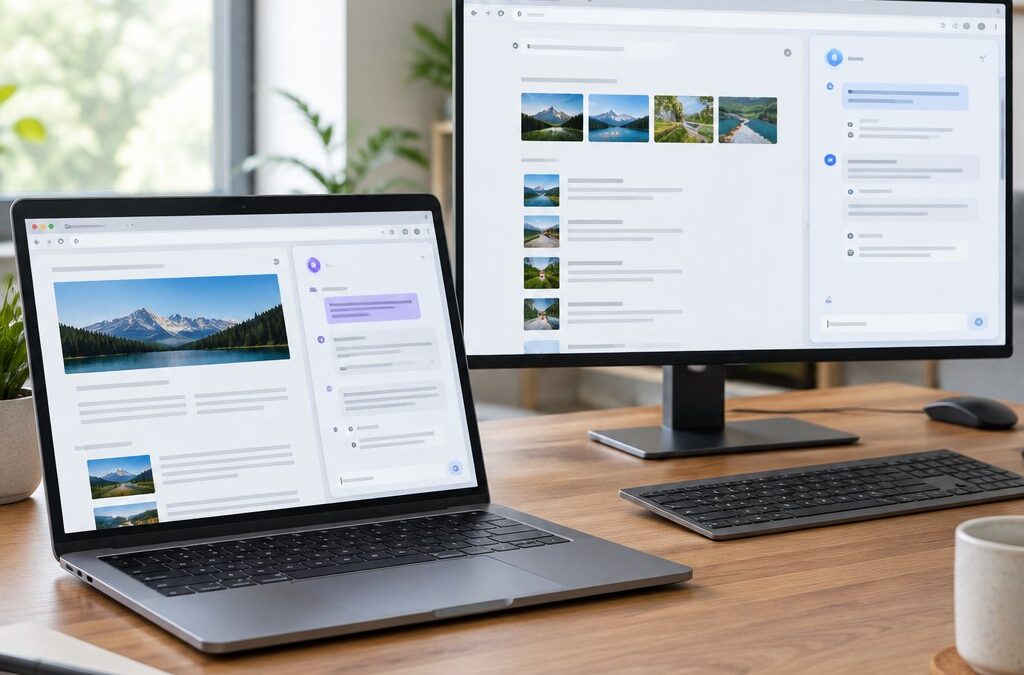

The practical choice depends on how you work
For most people, the AI browser vs browser extension decision is simple: choose an extension when you want help inside the browser you already use; choose an AI browser or desktop agent when the work itself needs a dedicated environment, broader context, or controlled accounts. Neither format is automatically better. The useful choice depends on what you ask AI to do, which pages it must see, and how much change you can tolerate.
A browser extension adds an AI tool to Chrome, Edge, or another supported browser. An AI browser builds assistance into the browser experience. A desktop AI agent app may include its own browser and can work across a task rather than only beside one tab. This guide separates those options so you can pick a setup that fits everyday browsing, research, and repeatable work.
Three options that sound similar but work differently
An AI extension is usually the lightest starting point. You install it, sign in, and open its sidebar or toolbar button when you need a summary, draft, answer, or explanation. It keeps your familiar bookmarks, tabs, extensions, saved passwords, and browsing habits largely intact.
An AI browser is a browser where AI features are part of the core experience. Depending on the product, those features may summarize pages, help organize tabs, answer questions about open content, or assist with searches. For a broader introduction, see what an AI browser is.
A desktop AI agent app with its own browser is a different category again. Instead of simply responding in a sidebar, an agent can potentially navigate a workflow: opening pages, clicking controls, typing into fields, and carrying context from one step to the next. That can be useful when a task spans multiple websites, but it also calls for more deliberate permissions and review.

AI browser vs browser extension: a grounded comparison
Migration cost is often the deciding factor. An extension asks you to add one tool to a familiar setup. A new browser environment asks you to consider bookmarks, password management, extensions, profiles, and whether you want to rebuild parts of your workflow. That effort may be worthwhile when the browser becomes a work surface rather than merely a place to read pages.
Extension compatibility also matters. A Chrome extension may work well with other Chrome extensions, but the sidebar can compete for space and its capabilities are limited by the browser’s extension model and granted permissions. A dedicated application may handle tasks more cohesively, while requiring you to verify which browser features and add-ons you still need.
Permissions, privacy, and page access deserve a closer look
Do not choose solely by convenience. An AI extension may request permission to read and change data on websites you visit, while an AI browser or agent may need access to pages, cookies, downloads, or browser actions to complete the work you request. Read the permission prompts, product documentation, and account controls before using any tool with private information.
Page access is not the same as unlimited access. Permissions can vary by site, browser profile, tool setting, and task. If you work with financial accounts, medical portals, confidential client materials, or internal company systems, decide in advance what information should never be included in prompts or automated workflows.
For example, Minda Desktop is a desktop AI agent app with a built-in Chromium browser. Its workspaces can keep cookies and logins separate, and an agent can click, type, and fill forms. Minda states that approval is required before paying. Review Minda’s privacy explanation for product-specific details rather than assuming every AI browser handles data in the same way.
Match the format to the job
Choose an extension for everyday help
Use it to summarize an article, rewrite a paragraph, compare visible information, or ask questions while staying in your usual browser.
Choose an AI browser for focused research
A dedicated browser can make sense when you regularly compare many pages, manage research sessions, and want assistance embedded in that environment.
Choose an agent for repeatable workflows
An agent environment is better suited to tasks involving several sites, repeat entries, account switching, and reviewable browser actions.
Consider a student reading one long report. A sidebar extension may be enough to define terms, turn notes into an outline, and summarize selected sections. Consider a recruiter collecting information from several job boards and an applicant tracking system. Separate workspaces and multi-page task context can be more useful than a sidebar.
For Minda users, Minda SI for Chrome is an AI sidebar extension for Chrome and uses the same Minda account as Minda Desktop. It is a practical option when you want AI assistance in Chrome without moving your browsing workflow. Desktop is the better match when the task benefits from a Chromium-based workspace and agent-driven browser actions. The Minda Desktop getting-started guide explains that environment in more detail.
A short decision checklist
- Start with an extension if you mainly want answers, summaries, drafting help, or selected-page assistance.
- Consider an AI browser if you want a full browsing environment built around AI features and are comfortable changing browsers.
- Choose a desktop agent app when tasks span multiple pages and you need the tool to take browser actions under your review.
- Prioritize separate profiles or workspaces if you switch among personal, client, and work accounts.
- Check whether must-have extensions, password tools, accessibility features, and enterprise controls remain available.
- Keep high-risk actions manual unless you understand the tool’s approval and confirmation process.
There is no rule saying you must pick only one. Many people use an extension for quick daily questions and a dedicated AI environment for a narrower set of work tasks. That split reduces migration friction while letting you test whether deeper browser automation genuinely saves effort.
If you are comparing an AI browser with a conventional browser instead, read AI browser vs. traditional browser. The distinction matters: this article is about choosing an AI delivery format, not deciding whether AI belongs in browsing at all.
Frequently asked questions
Is an AI browser safer than a browser extension?
Not automatically. Safety depends on the product’s permissions, data practices, security controls, your account setup, and how you use it. Review what each tool can access and avoid granting broad permissions without a clear reason.
Can an AI extension see every website I visit?
That depends on the permissions you approve. Some extensions request access on all sites, while others operate only on specific sites or after you activate them. Check the browser’s extension permission screen and the extension settings.
Will switching to an AI browser remove my Chrome extensions?
Possibly. Compatibility varies by browser and extension. Before switching, list the extensions you rely on for work, passwords, accessibility, security, or productivity, then confirm whether equivalent support exists.
When should I use a desktop AI agent instead of a sidebar?
Use an agent when a task requires navigation and action across several pages, such as gathering research, transferring information, or handling routine form steps. A sidebar is usually simpler for reading, writing, and one-page assistance.
Can I keep personal and work accounts separate?
Yes, if your chosen browser or app supports profiles or workspaces and you use them consistently. Separate cookies and logins can reduce accidental account mix-ups, but they do not replace careful permission management.
Start with the smallest change that solves the problem
Use an AI extension for familiar browsing, then explore a dedicated agent workspace when your research or repetitive web work needs more structure.
- Can You Switch Browsers Without Losing Bookmarks, Passwords, and History?

- AI Browser vs Browser Extension: Which Should You Use?

- Are AI Browsers Safe for Online Banking, Shopping, and Personal Accounts?

- Can AI Fill Out Online Forms for You? What Works and What Needs Approval

- Is an AI Browser Worth Switching To? What Everyday Users Should Know

- How Developers Can Connect Coding Agents to a Real Browser

- How Minda Syncs Browser Data Across Computers

- How to Prepare AI-Assisted Research Reports With Verifiable Sources

- Minda Free vs Pro vs Max: Features, Credits, and Plans

- How to Organize Research With Browser Notes and Highlights

- Claude Fable 5.5: The Azure Leak, the Viral Demos and What Is Confirmed

- Minda Privacy Explained: What Stays on Your Computer?

- How AI Agents Can Help SEO Teams With Research and Reporting

- How Minda Combines AI Chat, Research, and Browser Actions

- How to Use Your Own AI Models and API Keys in Minda

- How to Automate Website Monitoring and Routine Checks

- October 2026 Security Releases: Node.js, Go, GitLab, NGINX and eMudhra, Checked

- PHP Security Update, October 2026: CVE-2026-109618 and CVE-2026-109619 Explained

- How to Extract Website Data Into CSV or Excel Without Copying Manually

- Browser AI Agents vs RPA: Which Fits Everyday Work?

- How to Get Started With Minda on Windows, macOS, and Linux

- How AI Agents Help Digital Agencies Manage Multiple Clients

- How Minda Handles AI Actions That Require Your Approval

- How to Use AI for Web Research Without Losing Track of Sources

- How Minda Workspaces Keep Your Accounts Separate

- AI Agents for Freelancers: Practical Ways to Reduce Repetitive Work

- How to Manage Multiple Accounts Without Constantly Switching Logins

- How to Automate Repetitive Browser Tasks With an AI Agent

- Desktop AI Agent Platform: Features, Real Workflows, and How to Choose

- What Is a Super Intelligent Agent?

- What Is a Super Intelligent Browser?

- AI Agent Apps: What Can They Actually Do?

- Can Minda Use Your Computer Like a Human? A Simple Guide for Everyday Users

- Can an AI Agent Plan Your Entire Trip? How Minda Helps From Research to Booking

- Can Minda Manage Your Social Media for You? From Voice Idea to Multi-Platform Posting

- Can an AI Agent Edit Your Website? How Minda Works With WordPress, Shopify and Static Sites

- What Can Minda Do? 5 Core AI Capabilities Explained

- What Is a Super Intelligent Platform?

- AI Agent vs AI Assistant: What Is the Difference?

- AI Browser vs Traditional Browser: What Is the Difference?

- What Is an AI Agent? How AI Agents Complete Tasks for You

- What Is a Desktop AI Agent? A Simple Guide to AI That Works on Your Computer

- What Is an AI Browser? How AI Browsers Work in 2026