


Minda workspaces: one browser space per account
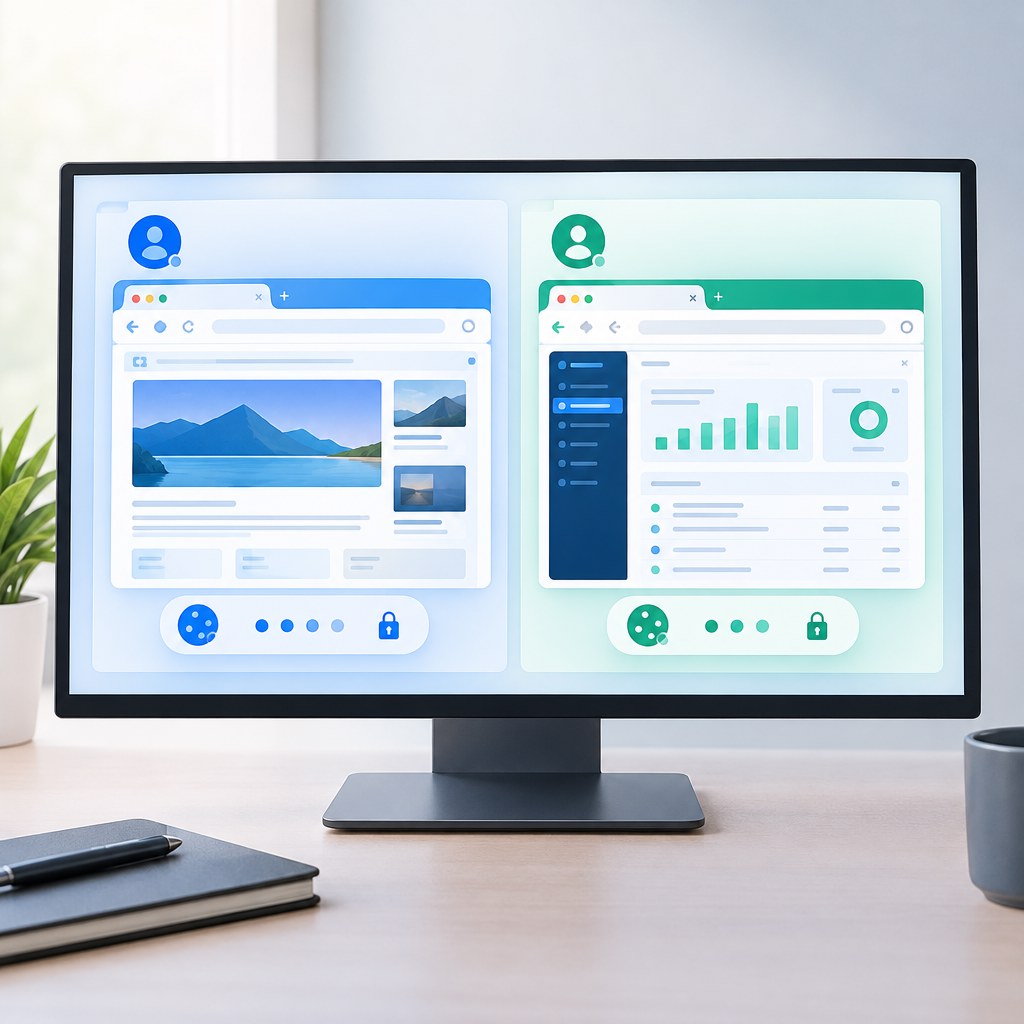
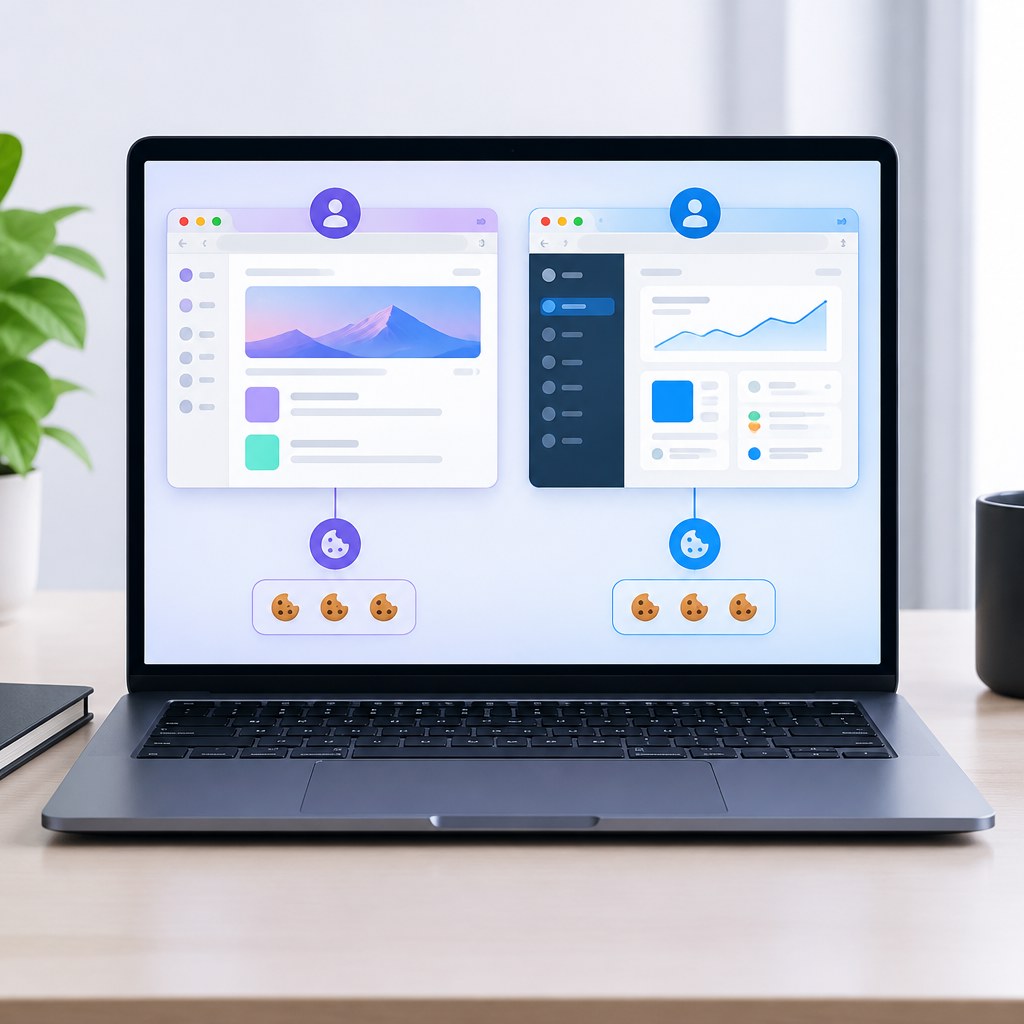
Minda workspaces let you stay signed in to several accounts on the same website at once. Each workspace is its own Chromium browser space, with its own cookies, sign-ins and saved site data. A site you open in one workspace sees only that workspace’s account, never the one signed in next door.
So a personal Gmail inbox can stay open beside a work inbox, and a client’s store admin never touches your own store’s session. You decide which workspace a task belongs to before you start. Workspaces sit in the rail on the left, next to your pinned apps.
Extra tabs don’t do this. Ten tabs of the same site in one workspace all share one sign-in. The workspace, not the tab, decides which account a site sees.
What stays inside a workspace
Sites remember who you are through more than a username on the screen. They lean on cookies, stored preferences and session tokens, and a browser that shares those between accounts is how mix-ups start.
Sign-ins and sessions
Sign in to a service in one workspace and that session belongs there. Open the same service in another workspace and it asks you to sign in fresh.
Cookies and site preferences
Language choices, dismissed banners and remembered carts live with the workspace that created them, so each account keeps its own state.
Schedules and saved agents
A schedule or saved agent keeps the workspace it was made in. A weekly check you set up for one client runs with that client’s sign-in every time.
This matters most on services that push you toward whichever account is already signed in. Many redirect a new tab straight to the active session, which makes a second account awkward to reach. Inside Minda you open that service in the workspace meant for the other account and carry on. The first account stays put.
Setting up a workspace for each account
Setup takes three moves: decide what the account is for, make a workspace for it, then sign in from inside that workspace. After that, coming back to the account means opening its workspace.
Draw the lines around identities, not tasks
The useful split is between sign-ins that must never mix. A freelance marketer in Chicago might keep one workspace for a client’s social accounts, one for her own business and one for personal browsing. Each identity gets one.
A new workspace for every project usually backfires. If two projects use the same Google account, splitting them means signing in twice and keeping two copies of the same session alive. Keep related tabs together instead: a project’s email, calendar, docs and dashboard can all live in the one workspace that holds its account.
Sign in once, inside the right workspace
Pick the workspace first, then go to the site and sign in. The cookies and session the site sets stay in that workspace, which is how it recognizes you next time. Setting up three accounts on one site? Do it one workspace at a time.
Open the same site side by side
Once each workspace holds its own sign-in, the same service can be open in all of them at once. One shows the admin dashboard of a help desk while another shows what a customer account sees. Nothing bleeds across.
Who picks the workspace when the AI agent works
You do. Minda’s agent works only in a workspace you name in your own words. A page might carry a hidden line telling it to switch to another account. The agent never takes its workspace from page text, so that line goes nowhere.
The name has to sit next to the word workspace or account, as in “check the inbox in the Shop B workspace”. Say “every account” and it goes through each one, with helpers taking one account apiece side by side. Acting across accounts like this is what makes Minda a desktop AI agent rather than an AI browser with a chat box. The Super Intelligent Browser explainer sets those categories next to a traditional browser.
Workspaces keep accounts apart. They don’t vet the pages inside them. A phishing page in the right workspace is still a phishing page. Read the address, read what a permission prompt asks for, and confirm the account a service shows before any step you can’t undo.
Where a separate workspace pays off
The clearest wins come wherever one site serves two of your roles:
- Two inboxes from one provider: work and personal mail stay signed in together, with no account switcher menu and no sign-out.
- Agency clients: each client’s analytics, ad manager and publishing tools sit in that client’s workspace, so a report never pulls numbers from the wrong account.
- Selling and buying on one marketplace: the seller dashboard keeps its business sign-in while your personal buyer account lives elsewhere.
- Support and testing: an admin account in one workspace and a standard user in another lets you reproduce a bug from both sides at once.
- A shared family computer: each person’s signed-in sites stay in their own workspace on the same installation.
Some limits come from the sites, not from Minda. A service can still ask for a verification code, show its own account picker, or sign you out after a period of inactivity. A workspace holds its browser data. It cannot overrule a site’s security rules or session timeouts.
Clearing data works per workspace too. Wipe cookies in the Personal workspace and only the sites there will ask you to sign in again, so check which workspace is open before you clear anything.
Why not just sign out and back in?
Because each round trip costs focus. You sign out, sign back in, wait for a code on your phone, then do it all again an hour later to get back to the first account. Over a day of client work, that adds up.
Workspaces make the link between a task and its sign-in visible and stable. The multiple-account guide compares this approach with browser profiles and the account switchers some sites build in, and it suits readers who want the options weighed before picking one. For anyone already in Minda, the routine is short: open the workspace, find the account still signed in, and work.
Frequently asked questions
Can I use two accounts on the same website at once?
Yes, and more than two. Workspaces are unlimited on every Minda plan, so you can keep as many accounts of one site open as you have workspaces for.
Do my workspace sign-ins follow me to another computer?
No. Cookies are never synced, so on a second computer you sign in to each site again. Bookmarks, history, passwords and notes do sync, sealed with encryption before they leave your machine.
How is a workspace different from a private window?
A private window keeps its cookies in memory only, so everything is gone when you close it. A workspace keeps its sign-ins between sessions, which suits an account you return to every day.
Can I lock a saved agent to one client’s workspace?
Yes. Bind a saved agent to one workspace and every page it opens uses that workspace’s sign-ins, in chats, tasks and schedules. It refuses any other workspace, even when asked or when Auto is on.
What happens to a company workspace when I leave a team?
Your computer removes the company’s workspaces and wipes their cookies and site data the next time it reads your teams. Signing out or going offline removes nothing.
Keep every account in its proper place
Start with the two accounts you switch between most. Give each its own workspace, sign in once in each, and you no longer sign out to switch. More setup guides are on the Minda blog.
- Can You Switch Browsers Without Losing Bookmarks, Passwords, and History?

- AI Browser vs Browser Extension: Which Should You Use?

- Are AI Browsers Safe for Online Banking, Shopping, and Personal Accounts?

- Can AI Fill Out Online Forms for You? What Works and What Needs Approval

- Is an AI Browser Worth Switching To? What Everyday Users Should Know

- How Developers Can Connect Coding Agents to a Real Browser

- How Minda Syncs Browser Data Across Computers

- How to Prepare AI-Assisted Research Reports With Verifiable Sources

- Minda Free vs Pro vs Max: Features, Credits, and Plans

- How to Organize Research With Browser Notes and Highlights

- Claude Fable 5.5: The Azure Leak, the Viral Demos and What Is Confirmed

- Minda Privacy Explained: What Stays on Your Computer?

- How AI Agents Can Help SEO Teams With Research and Reporting

- How Minda Combines AI Chat, Research, and Browser Actions

- How to Use Your Own AI Models and API Keys in Minda

- How to Automate Website Monitoring and Routine Checks

- October 2026 Security Releases: Node.js, Go, GitLab, NGINX and eMudhra, Checked

- PHP Security Update, October 2026: CVE-2026-109618 and CVE-2026-109619 Explained

- How to Extract Website Data Into CSV or Excel Without Copying Manually

- Browser AI Agents vs RPA: Which Fits Everyday Work?

- How to Get Started With Minda on Windows, macOS, and Linux

- How AI Agents Help Digital Agencies Manage Multiple Clients

- How Minda Handles AI Actions That Require Your Approval

- How to Use AI for Web Research Without Losing Track of Sources

- How Minda Workspaces Keep Your Accounts Separate

- AI Agents for Freelancers: Practical Ways to Reduce Repetitive Work

- How to Manage Multiple Accounts Without Constantly Switching Logins

- How to Automate Repetitive Browser Tasks With an AI Agent

- Desktop AI Agent Platform: Features, Real Workflows, and How to Choose

- What Is a Super Intelligent Agent?

- What Is a Super Intelligent Browser?

- AI Agent Apps: What Can They Actually Do?

- Can Minda Use Your Computer Like a Human? A Simple Guide for Everyday Users

- Can an AI Agent Plan Your Entire Trip? How Minda Helps From Research to Booking

- Can Minda Manage Your Social Media for You? From Voice Idea to Multi-Platform Posting

- Can an AI Agent Edit Your Website? How Minda Works With WordPress, Shopify and Static Sites

- What Can Minda Do? 5 Core AI Capabilities Explained

- What Is a Super Intelligent Platform?

- AI Agent vs AI Assistant: What Is the Difference?

- AI Browser vs Traditional Browser: What Is the Difference?

- What Is an AI Agent? How AI Agents Complete Tasks for You

- What Is a Desktop AI Agent? A Simple Guide to AI That Works on Your Computer

- What Is an AI Browser? How AI Browsers Work in 2026