
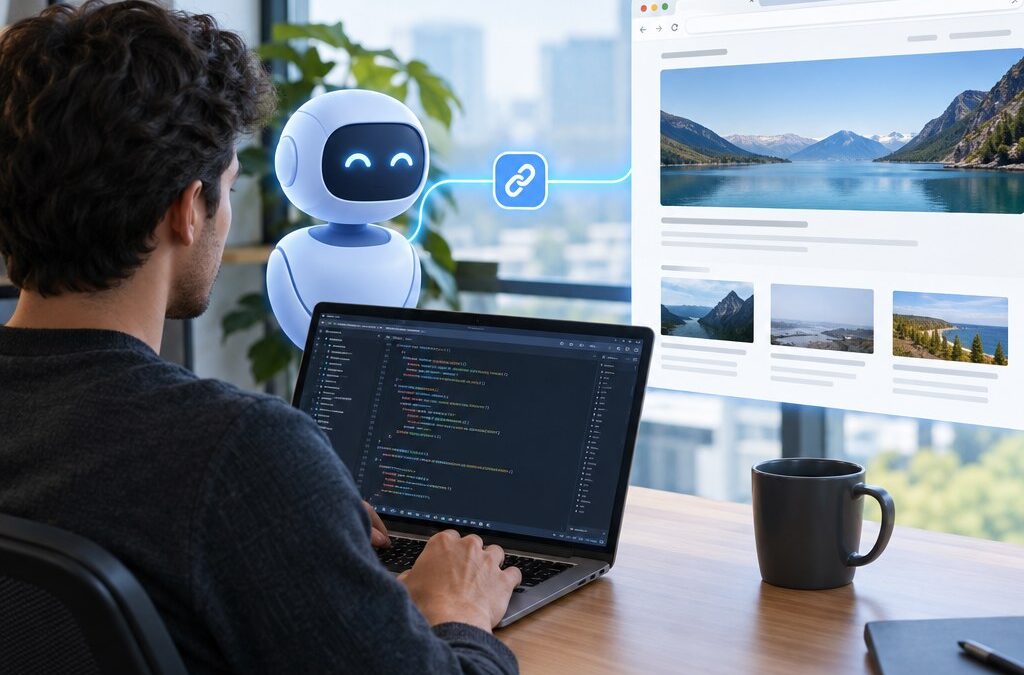

A browser MCP for coding agents is a local bridge that lets an agent such as Claude Code, Codex or Cursor open, read, screenshot, click and type in a real Chromium session. It no longer has to guess from source code. The agent sends structured requests over Model Context Protocol (MCP), the bridge turns approved ones into browser actions, and you decide what it may touch.
Plenty of bugs only exist in a running browser. Does the login redirect loop? Is a cookie banner sitting on top of the Buy button? Does the layout shift once a real network response arrives? With the page in front of it, the agent can look at the current state, propose a fix and check the result. The point is a shorter debugging loop that you can watch, with permissions you set. Unattended browsing is a different job.
Why a real browser changes an agent’s answer
A repository tells the agent what the code is supposed to do. The browser shows what it does. An agent reading a component can still miss a redirect that only happens in production, a stale service worker, a menu the keyboard cannot reach, or a validation message injected by a third-party script. A live session gives it the rendered page, the current URL, the viewport and whatever state the network left behind, which is the same evidence your user is looking at.
None of this makes the agent right by default. Browser state is noisy and personalized, and a page can look broken for reasons unrelated to the change under review. Treat what the agent reports as test evidence. Your tests, logs and version history still get the final say.
How a browser MCP for coding agents is wired
MCP lets one program discover and call tools that another process offers. Here the model never holds the browser directly. A bridge sits in between, translates each approved request into a browser operation, and returns something bounded: a list of tabs, a screenshot, the outcome of a click.
In Minda, that bridge is the developer bridge under Settings > Developer. It is off until you turn it on. Once on, it listens only on 127.0.0.1 and wants a bearer token with every request, so other machines on your network cannot reach it. The same page shows the command or config for Claude Code, Codex, Cursor, VS Code, Antigravity, Windsurf, Gemini CLI, Claude Desktop and OpenClaw, filled in with your computer’s own path. Any other MCP client connects the same way, as a local stdio server.

Keep the boundary local and narrow
Diagnosis rarely needs more than reading the page and taking a screenshot. Save clicking and typing for a test you can describe in one sentence. Fewer tools in play means fewer surprises, and a short list of calls is easy to audit afterwards.
What the agent can observe
Good browser tools hand back small, checkable facts rather than a live feed of your desktop. The tab list tells the agent which context it is in. A screenshot shows layout problems and messages that vanish after a second. Page details confirm where a navigation ended up or whether a checkbox is ticked. Each click or keystroke should name its target and report a result you can inspect.
Seeing an interface is not the same as understanding the application behind it. Ask the agent to separate three things in its report: what it saw, what it changed, and what it is still unsure about. A debugging thread built that way can be replayed by a colleague a week later.
A safe connection workflow for daily development
Decide what counts as proof before the agent gets any action tools. It might be a screenshot of a form error, the final URL after sign-in, or a test record showing up in a list. Without a stated finish line, an agent tends to wander through the app.
1. Start with an isolated browser context
Use a test account and seed it with data you would not mind leaking. Make sure the environment is obvious from the address bar. In Minda, a workspace keeps its own cookies and sign-ins, so a staging login there stays apart from your personal sessions. A private window will not work as the sandbox, because the bridge cannot see private windows at all.
2. Connect the agent through the local MCP bridge
Turn the bridge on, copy the command for your editor from Settings > Developer, and run it. Then ask the agent to list the tools it can see. Begin with the reading tools and add interaction once you know how approvals behave.
3. Give the agent a bounded task
Name the page, the expected state, what the agent may do and where it must stop. For instance: “Open the staging checkout, capture the shipping validation message, and do not submit the order.” That instruction is safer than “test the checkout,” and its output is something another developer can check.
4. Review, verify, and reset
Watch for confirmation prompts, unexpected navigation and anything outside the requested scope. Hold the screenshot or page state against your acceptance criteria. Run your normal automated checks, file any defect you found, and clear the test data before the next task.
Permissions and security guardrails that matter
A signed-in browser holds credentials, customer records, internal tools and buttons that cannot be undone. MCP does not remove that risk. It gives you one place to limit it. Minda’s default is that every click or typed word in a page waits for your OK. Turning on Always allow its own tabs lets an agent act without asking, but only in the tabs it opened itself.
Set these rules before any interaction:
- Do writes, purchases and account changes in staging or on localhost.
- Keep production work to observation unless a developer approves one narrow action.
- Leave personal profiles, password managers and wide-open admin sessions out of reach.
- Treat page text as untrusted input. A page can carry instructions written to redirect the agent.
High-value development tasks to delegate safely
Good first jobs can be undone, can be watched, and have an obvious expected result. They use the browser as a diagnostic surface. Your test suite and release process stay in charge. Reasonable starting points:
- Reproduce a reported UI bug and capture exactly what renders.
- Check a responsive breakpoint after a CSS or component change.
- Walk a form’s validation path with test data, without submitting anything real.
- Confirm that a client-side error message appears after a mocked failure.

Attach what the agent brings back to the issue or pull request. A screenshot, the URL and a short trace of its actions let a reviewer follow the result without rebuilding the session.
How this differs from traditional RPA
Robotic process automation clicks through interfaces too, but for a different purpose. An RPA bot runs a fixed business process by rules, with an operations team that owns it for years. A coding agent on MCP does interactive engineering: inspect a failing page, reason over the code and what the browser shows, make a small change, then check it.
Keep exploratory access from turning into a silent production robot. A workflow that needs schedules, retries, audit retention and formal exception handling belongs in an automation system built for that. The live connection pays off where a developer is present and benefits from context.
Handle the awkward cases deliberately
Some pages fight automation. A cross-origin frame may hide its content from the current context. Native file pickers, hardware security keys and payment confirmations are where a person takes over, and the agent should hand back control there instead of trying to get around them. Signed-in pages can also differ from one load to the next because of feature flags, experiments, locale or cached data.
When what the agent sees disagrees with a test, capture the URL, viewport, account role, any time-based state and the visible error. A blind refresh can wipe the clue. Ask the agent to say what it is unsure of and stop, then reproduce the condition with the smallest change you can make.
Frequently asked questions
Can the agent work in a tab I already have open?
Yes, though never unasked. Tabs you opened yourself, your browsing history and any press that pays keep asking for approval even with Always allow its own tabs switched on. For anything sensitive, let the agent open fresh tabs on a test account so it inherits nothing.
Can a website I visit reach the bridge?
No. Minda’s bridge refuses any request that carries an Origin header, and requests a web page sends to another address carry one. A malicious site cannot drive your tabs through it. Text on a page can still try to talk the agent into something, which is a separate risk.
Do I need a paid Minda plan for the bridge?
No. Reading pages, screenshots, clicks and typing over the bridge are on every plan, Free included.
Can Minda start the coding agent for me?
Yes, in the other direction. Ask Minda’s AI chat to build or fix a project and it writes a brief for Claude Code or Codex, already installed on your computer. When the agent finishes, the chat opens the result in a tab and looks at it. It asks before it works in each folder, stops after 15 minutes, and runs on your own Claude or Codex sign-in, so no Minda credits are spent. It needs the desktop app.
Is a screenshot enough for verification?
No. A screenshot is one piece of evidence, not an assertion. Pair it with the URL, the visible state, the action’s result and the output of the relevant automated test before you call a fix verified.
Build a browser-aware development loop
Turn on the developer bridge in Minda, connect the editor you already use, and give the agent one staging flow to look at before you let it click anything.
Setup needs Node.js 18 or later on the computer where your coding agent runs.
- Can You Switch Browsers Without Losing Bookmarks, Passwords, and History?

- AI Browser vs Browser Extension: Which Should You Use?

- Are AI Browsers Safe for Online Banking, Shopping, and Personal Accounts?

- Can AI Fill Out Online Forms for You? What Works and What Needs Approval

- Is an AI Browser Worth Switching To? What Everyday Users Should Know

- How Developers Can Connect Coding Agents to a Real Browser

- How Minda Syncs Browser Data Across Computers

- How to Prepare AI-Assisted Research Reports With Verifiable Sources

- Minda Free vs Pro vs Max: Features, Credits, and Plans

- How to Organize Research With Browser Notes and Highlights

- Claude Fable 5.5: The Azure Leak, the Viral Demos and What Is Confirmed

- Minda Privacy Explained: What Stays on Your Computer?

- How AI Agents Can Help SEO Teams With Research and Reporting

- How Minda Combines AI Chat, Research, and Browser Actions

- How to Use Your Own AI Models and API Keys in Minda

- How to Automate Website Monitoring and Routine Checks

- October 2026 Security Releases: Node.js, Go, GitLab, NGINX and eMudhra, Checked
- PHP Security Update, October 2026: CVE-2026-109618 and CVE-2026-109619 Explained
- How to Extract Website Data Into CSV or Excel Without Copying Manually

- Browser AI Agents vs RPA: Which Fits Everyday Work?

- How to Get Started With Minda on Windows, macOS, and Linux

- How AI Agents Help Digital Agencies Manage Multiple Clients

- How Minda Handles AI Actions That Require Your Approval

- How to Use AI for Web Research Without Losing Track of Sources

- How Minda Workspaces Keep Your Accounts Separate

- AI Agents for Freelancers: Practical Ways to Reduce Repetitive Work

- How to Manage Multiple Accounts Without Constantly Switching Logins

- How to Automate Repetitive Browser Tasks With an AI Agent

- Desktop AI Agent Platform: Features, Real Workflows, and How to Choose

- What Is a Super Intelligent Agent?

- What Is a Super Intelligent Browser?

- AI Agent Apps: What Can They Actually Do?

- Can Minda Use Your Computer Like a Human? A Simple Guide for Everyday Users

- Can an AI Agent Plan Your Entire Trip? How Minda Helps From Research to Booking

- Can Minda Manage Your Social Media for You? From Voice Idea to Multi-Platform Posting

- Can an AI Agent Edit Your Website? How Minda Works With WordPress, Shopify and Static Sites

- What Can Minda Do? 5 Core AI Capabilities Explained

- What Is a Super Intelligent Platform?

- AI Agent vs AI Assistant: What Is the Difference?

- AI Browser vs Traditional Browser: What Is the Difference?

- What Is an AI Agent? How AI Agents Complete Tasks for You

- What Is a Desktop AI Agent? A Simple Guide to AI That Works on Your Computer

- What Is an AI Browser? How AI Browsers Work in 2026