
Yes, You Can Switch Browsers Without Losing Your Important Data
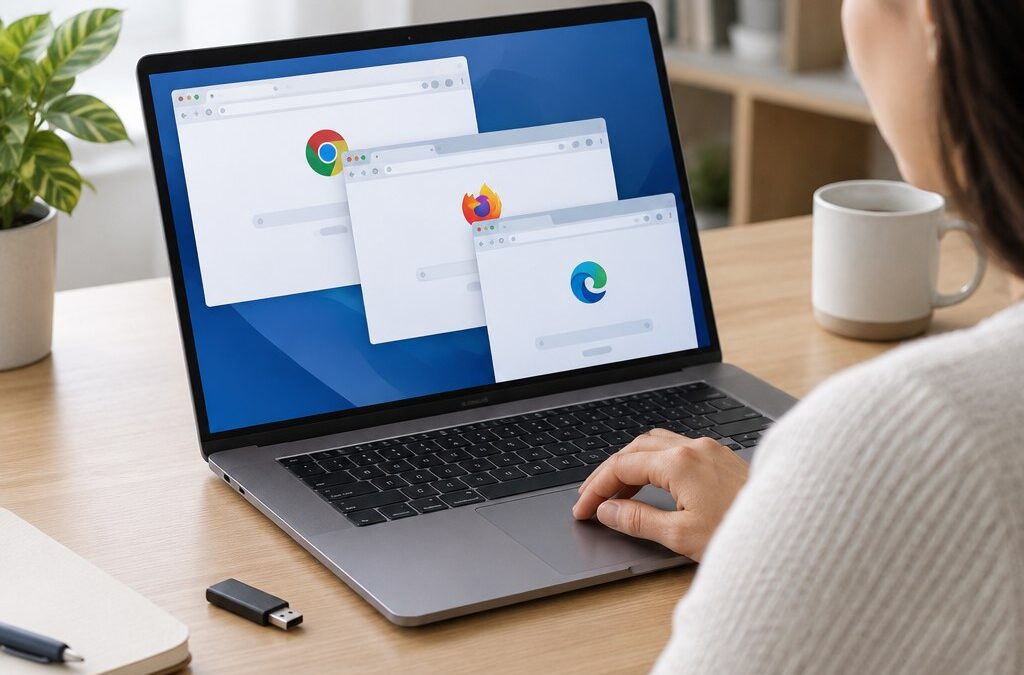
Yes. You can switch browsers without losing data if you prepare the move before importing anything. Modern browsers can usually copy bookmarks, saved passwords, browsing history, open tabs, and sometimes extensions from another installed browser. The important qualification is that some information is local, protected, or deliberately excluded. A safe migration uses exports as backups, verifies the imported results, and keeps the old browser available until everyday work is stable.
Think of browser migration in three phases: protect what you have before moving, import and check data during the move, then confirm that your new setup works afterward. Importing transfers a snapshot. Syncing keeps data current across devices after the migration, which is a different job.
What Usually Transfers, and What Needs Extra Attention
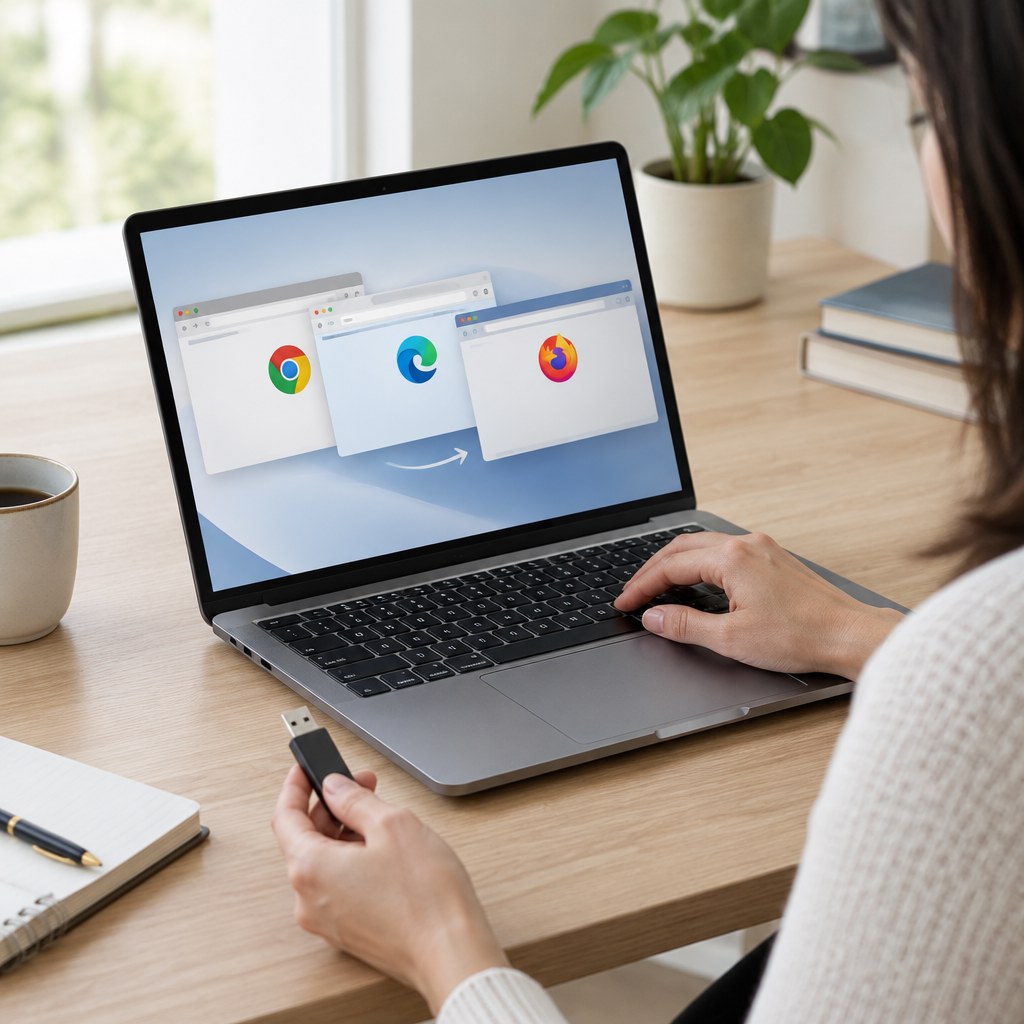
Browser import tools are helpful, but they do not all collect the same categories. What transfers depends on the source browser, operating system, security settings, and whether the old browser is still installed on the computer.
Bookmarks are usually the easiest item to preserve. Passwords require more care because browser and operating system protections can limit direct transfer. History may import partially, while cookies, existing site sessions, and device specific passkeys often do not transfer at all.
Before You Switch: Create a Reliable Safety Net
Do not begin by uninstalling your old browser or clearing its data. First, make independent backups of anything that would be frustrating to recreate. Even when an automatic importer is available, a backup gives you a recovery path if the transfer skips folders, duplicates items, or fails midway.
Export your bookmarks
Use your current browser’s bookmark manager to export bookmarks to an HTML file. Save that file somewhere you can find again, such as an encrypted drive or a protected folder. Open the exported file once to confirm it contains recognizable bookmarks and folders. It can usually be imported into another browser later, even if direct migration is unavailable.
Handle passwords carefully
Many browsers offer a password export option, often as a CSV file. CSV password files are unencrypted plain text, meaning anyone who can open the file can read the credentials. Export only when needed, keep the file off shared storage, import it promptly, and securely delete it afterward. Never upload exported credentials to an AI tool, chatbot, email message, or cloud document.
Confirm sign ins and recovery methods
Before migrating, make sure you can access the email address and authenticator app used for important accounts. Review backup codes for two factor authentication, especially for financial, work, school, and password manager accounts. If a saved password does not import, a recovery option may be your fastest route back in.
Record your active work
Save open tabs that matter. Create a temporary bookmarks folder for active projects, shopping comparisons, travel plans, or research. Write down extensions you rely on and note any custom settings, such as default search, downloads location, privacy controls, or accessibility preferences.
During the Migration: Import in a Controlled Order
Install the new browser first, then look for its import or migration option. Chrome, Edge, and Firefox generally support importing from other major browsers when the source browser is detected. If automatic detection fails, import bookmarks from the HTML backup and use the password CSV only if the destination browser supports it.
Some recent Chrome and Edge password protections may require a CSV export rather than a direct password import. That is inconvenient, but it is safer than assuming every credential moved. Complete the password import privately, then remove the CSV file as soon as you verify the result.
- Import bookmarks first and inspect your folders.
- Import passwords only through the browser’s secure password workflow.
- Import history and tabs if those options are offered.
- Install essential extensions individually when possible.
- Recreate privacy, download, and search settings intentionally.
A controlled order makes problems easier to diagnose. For example, if autofill stops working after adding an extension, you can investigate that extension instead of wondering whether the entire migration failed.
After the Move: Test Before You Commit
Spend a few days using the new browser alongside the old one. Open your most important work sites, personal email, banking portal, calendar, shopping accounts, and streaming services. Confirm that bookmarks open, autofill suggests the right credentials, downloads go where expected, and critical extensions work correctly.
Compare your imported bookmarks against the old browser, especially bookmark bar folders and saved reading lists. Search browser history for a few familiar pages. If your new browser imported only recent history, that may be normal; use the old browser or a saved export as your reference instead of assuming everything disappeared.
Do not immediately uninstall the prior browser. Keeping it available gives you time to retrieve a missed bookmark, locate an extension setting, or revisit a session that did not transfer. Once your new browser has handled normal work reliably, you can remove the old one or clear its data according to your security needs.
Importing Data Is Not the Same as Ongoing Sync
An import is a one time copy. If you add a bookmark in the old browser after importing, it will not automatically appear in the new browser. Ongoing browser sync is designed to keep selected data aligned across devices after you sign in and enable it.
If you use Minda, its desktop AI agent app includes a built in Chromium browser and can import data from Chrome, Edge, and Firefox. Most, but not all, Chrome extensions are supported. For Chrome 127 or later and some Edge password migrations, you may need to export passwords as CSV before importing them. Review how Minda browser sync works separately from the initial migration process.
Workspaces also deserve attention. Minda browser workspaces keep separate cookies and sign ins, so a site login in one workspace may not exist in another. Learn more about using separate workspaces for different accounts before assuming a session will carry over.
Common Mistakes That Cause Avoidable Data Loss
- Relying on automatic import without creating a bookmark backup.
- Leaving exported password CSV files in Downloads or cloud folders.
- Uninstalling the old browser before comparing results.
- Expecting logged in sessions, cookies, and passkeys to move automatically.
- Installing every extension before confirming the browser works normally.
- Confusing a one time import with cross device syncing.
Privacy settings matter during a migration too. Before enabling any optional service, understand what it stores and how it protects your information. Minda uses end to end encryption only when you choose and set a passphrase; it is not enabled by default. Its privacy overview explains the distinction in more detail.
Frequently Asked Questions
Will I lose my bookmarks when switching browsers?
Usually, no. Direct import often transfers bookmarks, and an HTML export provides a dependable fallback. Check bookmark folders and the bookmarks bar after importing because organization can occasionally change.
Can browsers transfer all saved passwords?
Not always. Password transfer may depend on the source browser, operating system security, browser version, and export permissions. Keep account recovery methods ready, and use a protected CSV export only when necessary.
Does browsing history transfer completely?
It may transfer fully, partially, or not at all depending on the browsers involved. History is useful but should not be your only record of important pages. Save essential research and active tabs as bookmarks before moving.
Why am I signed out after importing?
Site sessions rely on cookies and security tokens that are commonly excluded from migration. This is expected behavior, not necessarily an import failure. Sign in again, complete two factor verification, and allow the new browser to save credentials securely.
Should I delete my old browser after switching?
Wait until you have tested key sites, settings, passwords, extensions, and bookmarks for several days. Keeping the previous browser temporarily is one of the simplest safeguards against losing overlooked information.
Move Carefully, Then Make the New Browser Yours
Back up first, verify each import, and keep the previous browser until your everyday workflow is secure.
Can You Switch Browsers Without Losing Bookmarks, Passwords, and History?
- Can You Switch Browsers Without Losing Bookmarks, Passwords, and History?

- AI Browser vs Browser Extension: Which Should You Use?

- Are AI Browsers Safe for Online Banking, Shopping, and Personal Accounts?

- Can AI Fill Out Online Forms for You? What Works and What Needs Approval

- Is an AI Browser Worth Switching To? What Everyday Users Should Know

- How Developers Can Connect Coding Agents to a Real Browser

- How Minda Syncs Browser Data Across Computers

- How to Prepare AI-Assisted Research Reports With Verifiable Sources

- Minda Free vs Pro vs Max: Features, Credits, and Plans

- How to Organize Research With Browser Notes and Highlights

- Claude Fable 5.5: The Azure Leak, the Viral Demos and What Is Confirmed

- Minda Privacy Explained: What Stays on Your Computer?

- How AI Agents Can Help SEO Teams With Research and Reporting

- How Minda Combines AI Chat, Research, and Browser Actions

- How to Use Your Own AI Models and API Keys in Minda

- How to Automate Website Monitoring and Routine Checks

- October 2026 Security Releases: Node.js, Go, GitLab, NGINX and eMudhra, Checked
- PHP Security Update, October 2026: CVE-2026-109618 and CVE-2026-109619 Explained

- How to Extract Website Data Into CSV or Excel Without Copying Manually

- Browser AI Agents vs RPA: Which Fits Everyday Work?

- How to Get Started With Minda on Windows, macOS, and Linux

- How AI Agents Help Digital Agencies Manage Multiple Clients

- How Minda Handles AI Actions That Require Your Approval

- How to Use AI for Web Research Without Losing Track of Sources

- How Minda Workspaces Keep Your Accounts Separate

- AI Agents for Freelancers: Practical Ways to Reduce Repetitive Work

- How to Manage Multiple Accounts Without Constantly Switching Logins

- How to Automate Repetitive Browser Tasks With an AI Agent

- Desktop AI Agent Platform: Features, Real Workflows, and How to Choose

- What Is a Super Intelligent Agent?

- What Is a Super Intelligent Browser?

- AI Agent Apps: What Can They Actually Do?

- Can Minda Use Your Computer Like a Human? A Simple Guide for Everyday Users

- Can an AI Agent Plan Your Entire Trip? How Minda Helps From Research to Booking

- Can Minda Manage Your Social Media for You? From Voice Idea to Multi-Platform Posting

- Can an AI Agent Edit Your Website? How Minda Works With WordPress, Shopify and Static Sites

- What Can Minda Do? 5 Core AI Capabilities Explained

- What Is a Super Intelligent Platform?

- AI Agent vs AI Assistant: What Is the Difference?

- AI Browser vs Traditional Browser: What Is the Difference?

- What Is an AI Agent? How AI Agents Complete Tasks for You

- What Is a Desktop AI Agent? A Simple Guide to AI That Works on Your Computer

- What Is an AI Browser? How AI Browsers Work in 2026