Why does WhatsApp Web show only one account at a time?
Because a browser keeps one set of cookies and site data, and a site keeps one sign-in in each set. Link a second WhatsApp account in the same browser and it takes the place of the first. A second tab does not help either: both tabs read the same set, and WhatsApp Web runs in one tab of a browser at a time. Signing out and in again is the usual answer, and so are a second browser, a browser profile or a private window, each with its own catch.
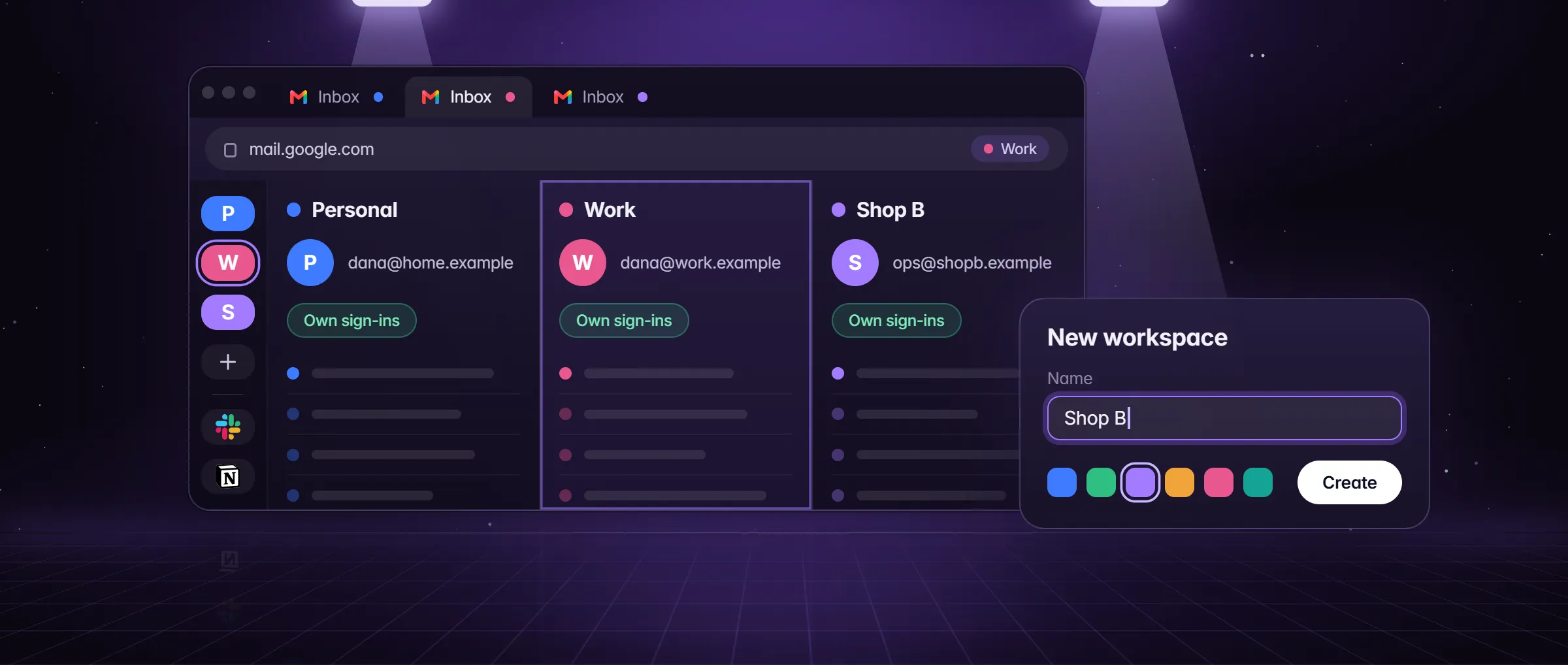
A workspace in Minda Super Intelligence is a second set inside the same window: its own cookies, its own site data and its own tabs. WhatsApp Web in one workspace and WhatsApp Web in another look to the site like two different browsers, so each stays linked to its own account for as long as you like. The same works for any site, as two accounts of one site at once shows; this guide adds what matters for WhatsApp: messages, calls and replies from both numbers.
How do I open a second WhatsApp account?
- Press New workspace in the left rail. Name it for the number, say "Chicago shop" for the business line and "Personal" for your own, and pick a colour: the workspace on screen shows on the rail with an edge bar in its colour.
- In the new workspace, open WhatsApp Web and link the second account the way WhatsApp Web asks you to. The link is kept in that workspace’s own cookies and site data, and nowhere else.
- Press + under the last app on the rail to pin WhatsApp as an app of this workspace. A pinned app gets a tile of its own, and Minda lets pinned apps notify you.
- Switch to your first workspace and pin WhatsApp there too, for the first account, if it is not pinned already.
- Move between the two with a press on the rail, or with Ctrl and a number: Ctrl+1 opens the first workspace on the rail, Ctrl+2 the second.
How do I get notifications from both numbers?
Pin WhatsApp in both workspaces and Minda brings in the messages of both, whichever workspace is on screen.
- Both stay awake. When Minda starts, it opens the rail’s apps in the background so their notifications are ready (Settings → General → Load sidebar apps at startup), and the chat apps of every workspace with them unless that setting is off. Memory Saver never puts an app that brings messages to sleep.
- One card per person. A new message shows as a card with the site, the sender and one line of the message, on the desktop by default or inside Minda’s window. A click on the card opens that chat in the tab it came from.
- One list for both. The bell in the toolbar keeps every message in one list, with a Chats tab, one row per person and how many of their messages are unread, so a message to either number waits there until you read it.
- Calls ring too. A WhatsApp call in either workspace shows a card with Answer and Decline; Answer brings its tab up and presses WhatsApp’s own Accept.
- Quiet hours by workspace. Settings → Notifications → Focus pauses the cards for an hour, until tomorrow or until you turn it off. Its daily Quiet hours can leave a workspace out, so the shop’s number still comes through while the personal one is quiet.
Why is one of the WhatsApp tabs quiet?
Check these five things, in this order.
- Is it pinned? A WhatsApp in an ordinary tab that was never allowed to notify sends no notification of its own, and its chat list can stay silent until you open that tab once. Pin it, or allow its notifications when it asks.
- Is the site turned off? Settings → Notifications → Sites can turn WhatsApp off, and then it shows no card, no Windows notification and no row in the list.
- Did you mute a person? The bell-slash on a card silences that person on that site; everyone else still comes through.
- Is Focus on? Messages that arrive while it pauses the cards still come into the list, marked with a moon, and do not come back as cards later.
- Is Load sidebar apps at startup off? Then an app opens only when you click it, and brings nothing in before that.
Can the SI agent and the chatbot help with both numbers?
Yes, and the sending stays yours unless you hand it over on purpose. Ask the SI agent "what did I miss on WhatsApp?" and it reads Minda’s notifications list and the unread chats your open chat apps show; it can also fetch the missed messages whole, which opens those chats and so marks them read in WhatsApp. What it reads goes to the AI model you picked, or, with Keep SI on this computer, only to a model in Ollama on your computer.
Reply drafts (Settings → Notifications, off until you turn them on) write up to three replies in your own style to a new chat message, ready in the notifications list. You copy one, or Put in chat box types it into that chat’s empty message box, and you press Send. Minda never sends a draft, and keeps the drafts in memory only.
Automations never click or type on chat sites, WhatsApp included: their terms ban automated sending. The one feature that sends there is the chatbot, and only in a WhatsApp Web tab you turn on for it in Settings → Chatbot → Channels. Each chat is Allow, Ask or Block: Allow replies on its own and says the replies come from your AI assistant, Ask holds a reply for you, Block leaves the chat alone, and every reply is bound to the tab and the message it answers.
Workspace, private window or browser profile: which suits a second number?
Pick a workspace for the number you use every day and a private window for one you touch once.
| Way | What you get | The catch |
|---|---|---|
| A second workspace | Both accounts linked at once, a press apart on the rail, with cards and calls from both once pinned | One window holds both, so give each workspace a clear name and colour |
| A private window | A second account for one session, with cookies kept in memory only | Close the window and the link is gone; no saved passwords, no extensions |
| A browser profile | A whole separate window for the second account | Everything else is kept apart too, and each account needs a window of its own |
How do I remove one account and keep the other?
Log out in that account’s WhatsApp Web tab, then clear what is left on your computer. Forget browsing data works on one site in one workspace, on a whole workspace or on everything, so you can forget WhatsApp in the "Chicago shop" workspace and leave the "Personal" one linked. Deleting a workspace removes its cookies and site data with it.
The same pattern holds for every app you keep twice: one workspace per account, the app pinned in each. The workspaces page shows the rail.
Limits
- Whether an account may be linked here, and how many links it allows, is WhatsApp’s own rule: a workspace keeps the two sessions apart, it does not change WhatsApp’s terms.
- A WhatsApp in an ordinary tab that was never allowed to notify sends no notification, and its chat list can stay silent until that tab has been opened once: pin it in its workspace.
- Automations never click or type on WhatsApp and Reply drafts never send; only the chatbot sends, in a WhatsApp Web tab you turned on for it, while Minda runs on your computer.
- A private window keeps nothing: close it and its WhatsApp link is gone.
Questions
Can I use two WhatsApp Web accounts in one browser?
Yes, one workspace each. A workspace keeps its own cookies and site data, so WhatsApp Web in one and WhatsApp Web in another stay linked to different accounts at the same time, a press apart on the left rail. Workspaces are unlimited on every plan, Free included.
Will I get notifications from both numbers?
Yes, once WhatsApp is pinned in each workspace: Minda lets pinned apps notify and opens them at start. A new message shows as a card with the sender and one line, a call as a card with Answer and Decline, and the bell keeps both numbers in one list.
Can Minda reply on WhatsApp for me?
Reply drafts write up to three replies for you to copy or put in the chat box, and you press Send. Automations never type on WhatsApp. Only the chatbot sends, in a WhatsApp Web tab you turn on for it, with each chat set to Allow, Ask or Block.
Does a second WhatsApp account cost anything?
No. Workspaces and new-message cards are on every plan at no cost. Reply drafts, the chatbot and the SI agent make AI requests: Minda AI credits on Minda’s hosted models, or none with your own key or a model in Ollama on your computer.
Sources
- minda-facts.json: workspaces
docs/marketing/minda-facts.json#workspaces - minda-facts.json: notifications
docs/marketing/minda-facts.json#notifications - minda-facts.json: chatbot
docs/marketing/minda-facts.json#chatbot - minda-facts.json: forget-and-private
docs/marketing/minda-facts.json#forget-and-private - Cookies per workspace, new-message cards, calls and the bell: Key Design Decisions 7 and 92, Known Bug 397
docs/project-knowledge.md - Apps opened at start in every workspace, and never put to sleep: the startup-apps.ts row of the File Inventory
docs/project-knowledge.md - Load sidebar apps at startup
src/renderer/components/pages/settings/GeneralSection.tsx - Focus and its quiet hours by workspace
src/renderer/components/pages/settings/NotificationsSection.tsx - Ctrl+1 to Ctrl+9: a workspace by its place on the rail
src/shared/shortcuts.ts - What the SI agent reads from the notifications list
src/main/services/knowledge/library-tools.ts - Reply drafts and the auto reply on chat sites: what is sent
src/renderer/components/pages/settings/privacy-facts.ts - What Minda keeps and sends: sections 2 and 3
docs/privacy.md