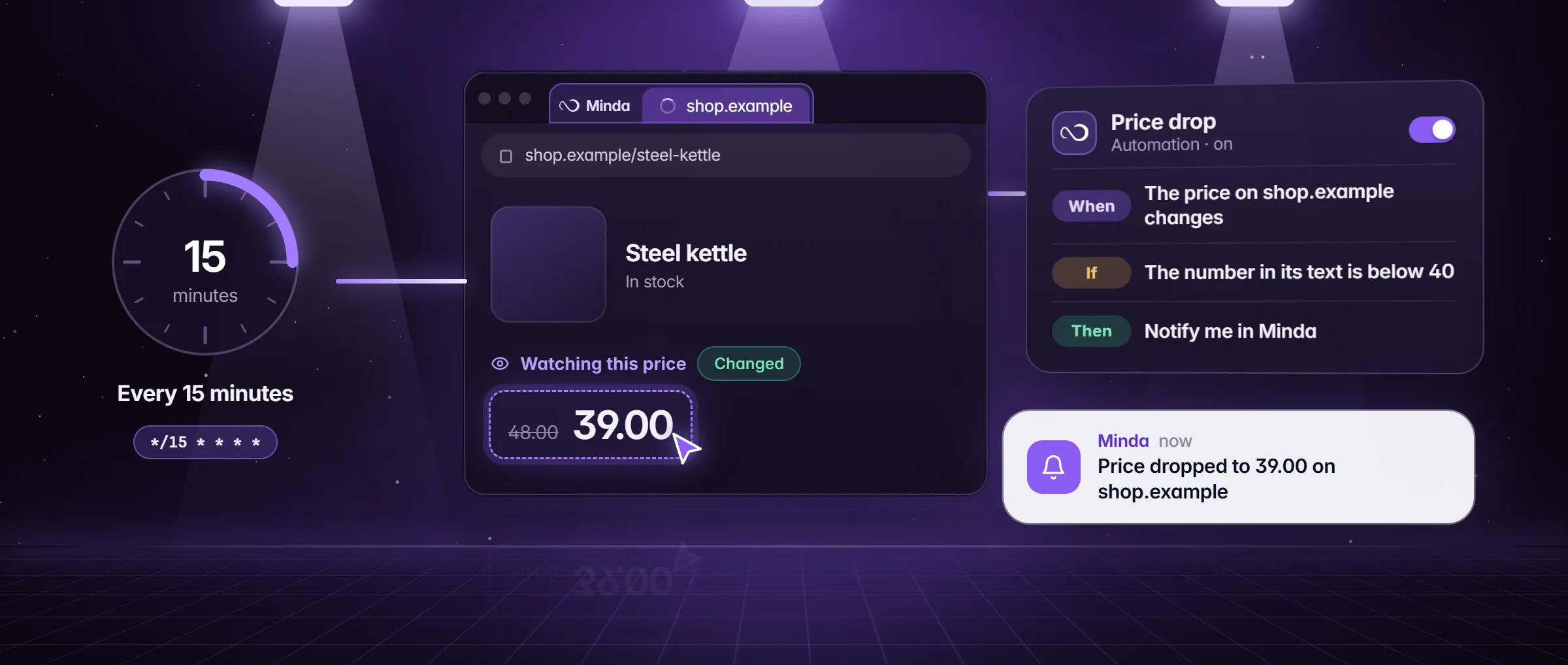
Which competitor pages are worth watching?
Watch the pages where a competitor commits to something: a price, a plan, a product, a hire, a promise. Pick a few pages per competitor rather than the whole site, where the noise hides the news.
A bike shop in Denver, say, would watch two rivals’ pricing pages, one rival’s catalog and its careers page. The general how-to for any page is how to monitor a web page for changes; this guide is the competitor case.
| Page | What to watch | What a change tells you | Tool |
|---|---|---|---|
| Pricing and plans | Each plan’s price, its name and the line that says what it includes | A price move, a new tier, a feature moved between plans | A watch on the open page |
| Product or catalog list | Every item’s name, price and link | New products, dropped ones, price changes across the range | A scrape task |
| Careers | The list of open roles | Where they are hiring, and for what | A scrape task with only new rows |
| Changelog, release notes or blog | The newest entry’s title | What they shipped or announced | A watch, or a cloud check |
| Home page | The main heading | A new pitch or a new audience | A watch that counts a change once it holds |
| Shipping, returns or terms | The sentence that holds the promise | A policy you may be compared on | A cloud check of that phrase |
How do I watch a competitor’s pricing page?
- Open the pricing page in Minda and keep its tab open: a watch reads the page in your open tab, signed in as you, and Minda keeps that tab awake.
- Right-click the price of the plan you compete with and choose Watch this for changes…. The Watch for changes dialog shows what it reads there now and guesses a name, such as Price.
- Under Where, keep This page, choose all of the site, or choose Pages that match for an address with
*, such as every product page of the same shop. - Under Tell me when, add a condition: Goes up, Goes down, Drops by a percent, Rises above a number, Starts showing words (such as Sale) or An item is added. With no condition, any change counts.
- Add more parts of the same page with Pick, such as the other plans’ prices and names: a watch reads up to six things on one page, with Any of these or All of these.
- Under Then, choose where a change goes: Notify me in Minda, Send to my Telegram, Email, WhatsApp, Send to a web address (a webhook) or Save a screenshot of it. Press Start watching.
How do I track a competitor’s whole product list?
With a scrape task. A watch reads a few parts of one open page; a scrape task opens the page on a schedule in a hidden page of your workspace, reads every row of its list, follows the next pages and compares the run with the last one, with no tab open and no AI model, so it costs no Minda AI credits. How to schedule a web scrape without code covers every option; for a competitor, these are the choices that count.
- Open the competitor’s catalog or careers page in Minda, at the first page of the list.
- Open Extract data, keep the list it finds and press Schedule…, or choose Scrape a page on a schedule in the Tasks panel and press Pick to point at a name, a price and a link.
- For prices, leave Only new rows off: each run is compared with the last, in any order, and a changed run says what moved, up to three cells, such as "Price: 101.20 → 102.50", or how many rows there were before.
- For new products or new roles, tick Only new rows: a run sends only the rows no run had before, as in "28 rows, 1 new", and a quiet run announces nothing.
- Choose Send results to: a note, an Excel or CSV file, your own API, email or WhatsApp. Set the repeat, from every 15 minutes to a cron line of your own; once a day suits most catalogs. Save and press Run now once to set the starting point.
How do I keep watching while my computer is off?
With a cloud automation on the public page. It runs on Minda’s server while your computer is off, on public pages and APIs only, which suits a competitor’s pricing page, changelog or terms. In Settings → Automations, start a new automation, set it to run in the Cloud (it needs you signed in) and choose the trigger A public page or API changes. Give the https address and, under What to read, a phrase on the page, a JSON path such as data.price for an API, or nothing to read all its text. It checks every 15 minutes or more (every 60 by default) and fires when what it reads appears, changes or goes.
Its steps are Post a notice in Minda (shown the next time your computer is online), Email me (your account’s own address, at most 20 a day), Send to a web address, Call an API, and Ask Minda AI, which reads a public page you name and answers once, at most 20 credits a run. A cloud automation never reads a page you are signed in to. Free keeps 20 of them turned on at once, and Pro 50.
How do I tell a real change from noise?
Competitor pages are busy: a banner rotates, a date moves, a stock counter ticks, a test shows a different headline on the next visit. Each of those is a change and none of them is news.
- Pick the smallest part that holds the fact: the price itself, not the card around it, which may carry a badge or a timer.
- Give it a condition instead of any change: Goes up, Goes down, Drops by a percent or Rises above a number for a price; Starts showing words or Stops showing words for a label such as Sale or Sold out; An item is added or An item is removed for a list.
- Count a change after it holds: at once, or after 2, 5, 15 or 60 seconds in the dialog, and up to 300 seconds in the editor. A part that flickers while the page loads, or swaps for a moment, is then never reported.
- Check less often: the dialog offers every 3, 10 or 30 seconds and every 1, 5 or 15 minutes. Every 3 seconds is the default; a competitor’s pricing page seldom needs more than every few minutes.
- Trust the starting point: the first steady reading is the baseline, so what a page shows when it opens is never news, and a part missing from a freshly loaded page gets 15 seconds before it counts as gone.
How do I read what changed, and keep a record?
Each change arrives with its before and after. A watch’s notice is titled with the name and what happened, such as "Price changed", and reads the new text with the old one beside it ("was …") and the site. A rule can use the same fields in its own words: {{text}} is the text now, {{previous}} the text before, {{number}} the number in it, {{trend}} which way it went (up, down or same) and {{changePct}} by how much, in percent; {{items}} says whether a list gained or lost items.
For a record, add Save a note to the rule, so each change becomes a note tagged "automation", or let a scrape task write a CSV file: one file per task that grows with every run, with a Collected at column, which is a dated price history you can chart in Excel.
For a summary, add an Ask AI step before the message: your AI model reads what happened and answers once, with no tools, and the next steps get its answer as {{answer}}. It uses Minda AI credits on Minda’s hosted models, or none with your own keys or Ollama. The page’s words reach the model marked as data, never as instructions, because a page you watch is someone else’s text: what prompt injection is.
What else tells you a competitor moved?
- Their social posts. Follow their profiles on Instagram, TikTok, Facebook, X, YouTube and Threads (10 on Free, 2,000 on Pro), or start from the Follow a person on every site template: a card when they post, checked every 30 minutes, with no AI. A rule can start from "Someone you follow posts or comments".
- Their website’s reach. In Library → People, a company’s profile with a website shows its visits a month, its ranks, its search traffic and its closest competitors, read from public traffic pages and the Chrome UX Report, with no AI and no credits.
- What they sell, and at what price. A company’s Business list keeps what the web says it sells and at what price, each item with the page that says it, and Keep up to date looks again daily. It uses your AI model.
- A page behind a sign-in. A partner portal or reseller price list is watched the same way, in the workspace that holds that sign-in; it is never read in the cloud.
Limits
- A watch reads a competitor’s page only while its tab is open in Minda, at most 20 watches are on at once, and watches and scrape tasks run only while Minda is open.
- A cloud automation reads public https pages and APIs only, every 15 minutes or more, and never a page you are signed in to.
- A redesign can move the part you picked: the Automations page then shows the watch as Not found on the page until you pick it again.
- Minda reads what the site shows a visitor or your sign-in; each site’s terms on automated checks come first, and rules never click or type on chat, social or mail sites.
Questions
How do I monitor a competitor’s website for changes?
Open the page in Minda Super Intelligence, right-click the price, plan or list you care about and choose Watch this for changes, then pick a condition and where the alert goes. For a whole catalog use a scrape task, and for checks while your computer is off, a cloud automation on the public page.
Can I track a competitor’s price changes for free?
Yes. Watches, scrape tasks and schedules are on every plan, Free included, and use no Minda AI credits when they only read and notify. Credits enter only with an AI step, such as a one-line summary of the change, and not at all with your own keys or Ollama.
How often should I check a competitor’s site?
As often as you would act on it. A pricing page you answer the same day: every 1 to 15 minutes while its tab is open, or a cloud check every 15 minutes or more. A catalog or a careers page: a daily scrape task. Every 3 seconds is the default, and competitors seldom need it.
Can I watch a competitor page that needs a login?
Yes, on your computer: a watch reads your open tab, signed in as you, and a scrape task loads the page with the sign-ins of the workspace you made it in. A page you are signed in to is never read in the cloud, and the site’s terms come first.
Sources
- minda-facts.json: automations
docs/marketing/minda-facts.json#automations - minda-facts.json: scheduled-tasks
docs/marketing/minda-facts.json#scheduled-tasks - minda-facts.json: notifications
docs/marketing/minda-facts.json#notifications - minda-facts.json: people
docs/marketing/minda-facts.json#people - The watcher, the Watch dialog and 20 watches at once: Key Design Decision 138; scrape runs compared: 78; cloud web checks: 140
docs/project-knowledge.md - The element and web-check triggers, their fields and limits
src/shared/automations.ts - The Watch for changes dialog: its conditions, checks and destinations
src/renderer/components/automation/WatchDialog.tsx - The cloud automation steps
src/shared/cloud.ts - What a scrape run says when its rows change, or come back empty
src/main/services/tasks/baseline.ts - What Minda keeps and sends: section 2
docs/privacy.md