What should a student use AI for, and what not?
Use AI to find, check and understand; write the work yourself. A model can be wrong with confidence, and a teacher grades what you can explain. Minda Super Intelligence is the personal AI agent app for your computer, with a built-in browser: it reads the pages you read, cites what it read and quizzes you on it. Everything below is on every plan, Free included.
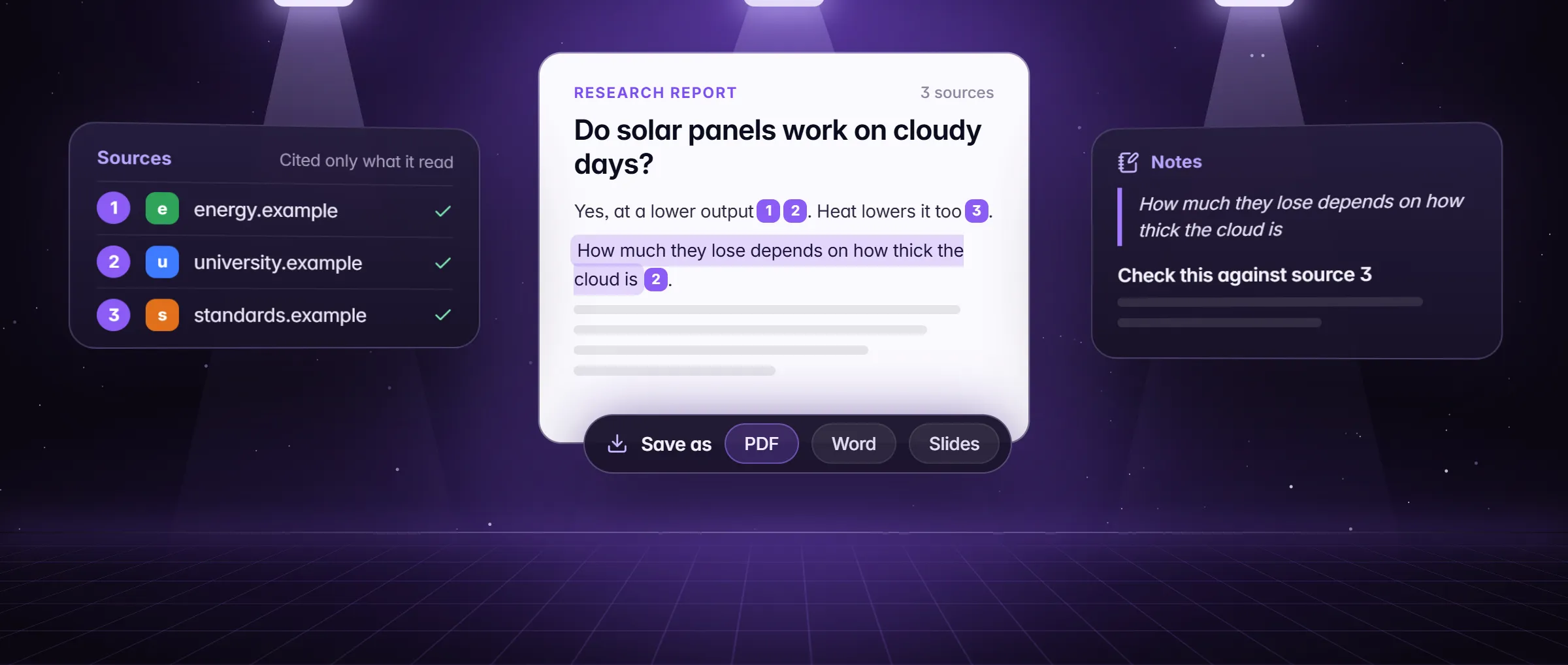
- Find and check sources. Research mode plans the question, reads the pages and numbers each source it read, so you start from evidence you can open.
- Understand a hard passage. Select it on the page and press Explain in the bar that appears: plain words, with the jargon defined. Summarize and Translate sit in the same bar.
- Test yourself. A study guide, 15 flashcards or a tutor that asks one question at a time turns a reading into practice.
- Keep a class as text. Meeting notes transcribe an online class into a note; Video transcript turns a recorded lecture into text you can search.
- Check your draft, do not outsource it. Ask the chat which of your claims has no page behind it, or select a sentence you wrote and press Fix grammar.
How do I research an assignment with sources I can cite?
- Open the AI chat (Alt+Q) and turn on Research in the chat box’s Modes menu, or type
/researchand your question. - Ask the question your paper must answer, not a keyword. For a 10th-grade paper: "Do later school start times improve sleep and grades for US high school students? Peer-reviewed studies and government statistics from the last ten years, about 600 words."
- Let it run. It splits the question into 3 to 6 sub-questions, searches each in several wordings, reads at least 5 sources for a narrow question and 10 to 20 for a broad one, and checks each number, date and name in two independent sources.
- Read the TL;DR, then the findings. Each claim carries a number such as [3] that links to a page the run read; open the three that carry your argument.
- On each page you will cite, select the exact lines, right-click and choose Highlight; then right-click again and choose Copy to note. The note keeps the text, its pictures and a card naming the source.
- Write the reference list in your school’s citation style from those cards. Before you hand in, run
/fact-checkon any claim you are unsure of: it gives a verdict from True to Unproven, with the evidence for and against.
How do I turn a reading into a study guide, flashcards or a quiz?
Three education skills do it from the page on screen. Add them once in Settings → Skills → Gallery, which holds 36 templates in 9 categories, then type the slash command in the chat while the reading is open. Fact-check and Literature review, used above, come from the same gallery.
| Skill | Type | What you get |
|---|---|---|
| Study guide | /study, with your level if you like | 5 to 8 key concepts, each with a one-sentence definition and an example; how they connect; common mistakes; 8 practice questions with the answers in a section at the end. Anything added from general knowledge is marked. |
| Flashcards | /flashcards, with a focus if you like | 15 cards, one idea each, that test understanding rather than trivia, in one block with a tab between front and back, so a flashcard app that imports tab-separated cards takes it as it is; then the 3 cards to review first. |
| Tutor me | /tutor and a topic | It asks what you already know, then one question at a time: it says what you got right, corrects what you got wrong and makes the next question a little harder. |
How do I get notes from a lecture or a video?
- An online class. On Google Meet, Zoom web, Teams or any tab, press Take meeting notes in the toolbar, or right-click the tab. The class’s sound and your microphone are transcribed into a note as it runs, labelled You and Others, with a summary, decisions and to-dos at the end.
- A recorded lecture. On YouTube, or any page with captions, right-click and choose Video transcript: Save to note, Copy, or Ask AI about this video. A video with no captions can be transcribed from its sound once you say yes.
- A slide or a whiteboard photo. Right-click the picture and choose Copy text from image, or Image text to note. On Windows the text is read on the computer and nothing is uploaded.
- What it costs. Meeting notes are free with your own OpenAI key or Windows’ own speech recognizer; on Minda AI they use credits. The audio is never saved.
How do I keep a semester of notes in one place?
Keep one note per class and clip into it as you go. Copy to note saves the text, its pictures and a card with the source; a highlight is marked again when you come back to the page, and every highlight is listed in the Library.
One search finds it again. In the address bar, type @ and pick @history, @bookmarks or @tabs, then what you are looking for. Or ask the chat "what did I save about the Federalist Papers" and the SI agent looks through your saved pages, notes and highlights before it answers.
Notes, highlights, skills and chats sync to your other computers and to your phone, where the account page shows your notes (read and edit), your highlights and search. By default Minda’s server can read what syncs; set your own passphrase of at least 10 characters and it cannot, because sync is then end-to-end.
What does a week of studying with Minda look like?
One class, one week: each day uses a different part of Minda, and all of it lands in the same note.
| Day | What you do | In Minda |
|---|---|---|
| Monday | Attend the online lecture | Take meeting notes: a note labelled You and Others, then a summary and to-dos |
| Tuesday | Do the reading | Explain on hard passages, Highlight the lines you will quote, Copy to note |
| Wednesday | Start the paper | Research mode on your question; open the cited pages and clip the ones you use |
| Thursday | Review | /study on the reading, then /flashcards for the terms |
| Friday | Test yourself | /tutor on the week’s topic, /fact-check on a claim in your draft |
| Weekend | Find anything again | One search over notes, highlights, tabs and history; your notes on your phone |
Is there a student discount, and how do I get it?
Yes: students get Pro at 50% off for 12 months with a school email. Every function on this page is on the Free plan too, with 100 Minda AI credits a month and 30 free everyday replies a day; plans differ by credits, never by functions, and Pro has 2,000 Minda AI credits a month and 100 free everyday replies a day.
- Open Settings → Plans → Offers in Minda, or the Plans page of your Minda account, or ask the AI chat for the student offer.
- Enter your school email: an address ending in .edu, edu.<country>, ac.<country>, k12.<state>.us or one of a few other school suffixes.
- Type the six-digit code mailed to that address within 15 minutes.
- Choose month or year billing. The address is checked again every year, and one school mailbox verifies one account; a school with another kind of address goes through Minda support.
Limits
- AI answers can be wrong, and a study guide may add from general knowledge (it marks what it adds): check every claim you hand in against the page it came from, and follow your school’s rules on AI help.
- Meeting notes label speakers You and Others only and never save the audio; reading text from a picture works on Windows only.
- The student offer needs a school mailbox that can receive the code, and the address is checked again every year; a school with another kind of address goes through Minda support.
- Research, study skills and chat replies on Minda’s hosted models use Minda AI credits, 100 a month on Free and 2,000 on Pro; your own keys or Ollama on your computer use none.
Questions
Is Minda free for students?
Yes. Every function, research, study skills, meeting notes and sync included, is on the Free plan with 100 Minda AI credits a month and 30 free everyday replies a day. Students who want more credits get Pro at 50% off for 12 months with a school email.
Will Minda write my essay for me?
It is built to help you learn. Research mode writes a report with numbered sources you can check, the study guide marks what it adds from general knowledge, and the tutor asks you one question at a time. What you hand in is your own work; follow your school’s rules on AI help.
Which school emails count for the student offer?
Addresses ending in .edu, edu.<country>, ac.<country>, k12.<state>.us and a few other school suffixes. A six-digit code is mailed to the address; type it within 15 minutes. A school with another kind of address goes through Minda support.
Can I use my own AI key instead of credits?
Yes. With your own OpenAI, Claude, Gemini or DeepSeek key, or a model in Ollama on your computer, research and the study skills use no Minda AI credits. Meeting notes are free with your own OpenAI key or Windows’ own speech recognizer.
Can I read my notes on my phone?
Yes. Notes and highlights sync to the account page, which works on a phone: read and edit notes, see your highlights and search. Set your own passphrase of at least 10 characters and sync is end-to-end.
Sources
- minda-facts.json: deep-research
docs/marketing/minda-facts.json#deep-research - minda-facts.json: notes-and-knowledge (meeting notes)
docs/marketing/minda-facts.json#notes-and-knowledge - minda-facts.json: skills (the gallery)
docs/marketing/minda-facts.json#skills - minda-facts.json: sync
docs/marketing/minda-facts.json#sync - minda-facts.json: minda-files (Ask AI’s Studio)
docs/marketing/minda-facts.json#minda-files - minda-facts.json: plans (Free, Pro)
docs/marketing/minda-facts.json#plans - minda-facts.json: offers (the student offer)
docs/marketing/minda-facts.json#offers - The Research mode prompt: sub-questions, source counts and cross-checks
src/main/services/ai/research.ts - The Study guide, Flashcards, Tutor me, Fact-check and Literature review templates
src/shared/skill-gallery.ts - The selection bar: Explain, Summarize, Translate and Fix grammar
src/shared/selection-bar.ts - The address bar’s @ scopes
src/renderer/components/toolbar/AddressBar.tsx - The student offer: Key Design Decision 290 and Known Bug 729
docs/project-knowledge.md - Learn Minda: the lessons’ rules on school work
tools/website/learn/lessons/index.html