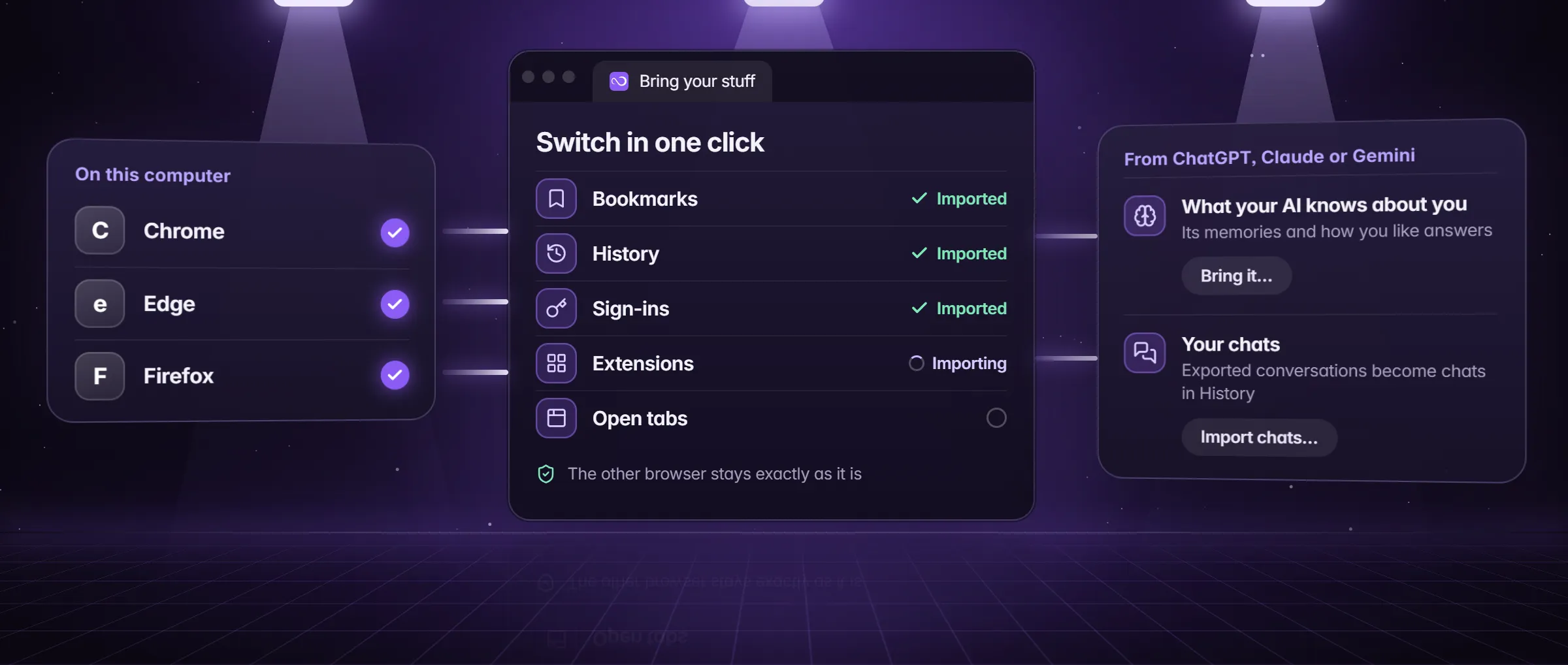
Why does only part of my Chrome passwords come over?
Because Chrome locks them. Chrome 127 and later, and current Edge, encrypt most saved passwords so that only that browser can read them. A new browser that imports straight from Chrome’s profile gets only the passwords Chrome left readable; the rest stay behind unless Chrome hands them over itself, through its own export to a CSV file.
Minda Super Intelligence, the personal AI agent app for your computer, does not try to get around that lock. Its import reads the passwords Chrome leaves open (on Windows), counts the locked ones and tells you how many, and shows Chrome’s own export as the way to bring them. In Minda’s own test on a real Edge profile, 1 password came over directly and 18 were reported locked, which is why the CSV route is the one to plan for.
Two more cases go by a CSV file too. Chromium browsers on macOS and Linux keep their passwords in the system’s keychain, which the import does not read, and Firefox passwords are not read at all; their own exports work.
Which way should I use: the direct import or a passwords file?
Use both, in this order: the direct import first, for your bookmarks, history, sign-ins, extensions, open tabs and the passwords it can read; then a passwords file for the rest. Nothing is added twice, so the second step only fills the gaps.
| Way | What it brings | Where in Minda | Mind this |
|---|---|---|---|
| Direct import | The passwords Chrome leaves readable, with your bookmarks, history, sign-ins, extensions and open tabs | Settings → Import & export → Import from another browser | Passwords on Windows only; locked ones are counted, not read |
| A passwords file (CSV) | Every password Chrome exports, the locked ones included | Settings → Import & export → Import from a folder or files, or the import result’s own button | The file is plain text until you delete it |
How do I export my passwords from Chrome?
- In Chrome, type
chrome://password-manager/settingsinto the address bar and press Enter. - Choose Export passwords, then save the file it offers, a .csv file.
- Save it in a plain folder on the computer, not one that OneDrive, Dropbox, Google Drive or iCloud Drive syncs: a file there is uploaded at once and stays in the service’s version history and deleted-files bin after you delete it. On Windows, the Desktop and Documents folders may sit inside OneDrive.
- Leave the file where it is until Minda has read it; you delete it in the next part.
How do I import the CSV file into Minda?
- Open Settings → Import & export. If you ran the direct import first, its result offers to bring the locked passwords over with a file, with the same steps and a Choose file… button. Otherwise use Import from a folder or files → Choose files…
- Pick the .csv file. Minda reads Chrome’s columns, and the password files of Firefox, Safari, Bitwarden and other password managers that name a website, a user name and a password.
- Each password is saved encrypted for this computer at once. A login Minda already has with the same password is left as it is; with a different password, the file’s replaces it, since you chose the file.
- Press Delete file. Minda deletes it for good, not to the Recycle Bin, where it would stay readable, and only while the file is unchanged since Minda read it; if it changed or moved, Minda leaves it alone and tells you to delete it yourself.
- Open Settings → Passwords to check a few sites. With Fill passwords automatically on, a site’s sign-in fields fill when you click into them.
Where do the passwords live afterwards, and who can read them?
- On this computer, encrypted by the operating system. Each password is kept in the system’s keystore, and Minda saves none without that encryption. On Linux it needs a keyring such as GNOME Keyring or KWallet.
- On your other computers, only with sync on. Each item is sealed on your computer with AES-256-GCM before it leaves. By default Minda’s server holds the key wrapped with its own secret, so it can read what syncs; set your own passphrase of at least 10 characters and it cannot.
- In a backup, under your password. A .minda backup is encrypted with a password of your own (scrypt and AES-256-GCM) and restores into another Minda.
- Never in a private window. Private windows never save passwords.
- Not needed by the SI agent. It works in sites you are already signed in to. With Careful on, a step that types a password waits for your OK, and the action log never records typed text.
What about sign-ins, and passwords from Edge, Firefox or Safari?
Sign-ins, the cookies that keep you logged in, come over with the direct import, but Chrome 127 and later and current Edge lock some of them the same way as passwords; the result says how many, and you sign in again on those sites. With your passwords already imported, signing in again goes quicker.
Other browsers hand their passwords over the same way, through their own export. These are the places Minda’s import points to:
- Edge:
edge://settings/passwords, then Export passwords. - Brave:
brave://password-manager/settings, then Export passwords. - Opera:
opera://settings/passwords, then Export passwords. - Firefox:
about:logins, then the ⋯ menu to export the passwords. - Safari: Settings → Passwords, then the ⋯ menu; or the ZIP of Safari’s Export Browsing Data, which Minda reads for bookmarks, passwords and history.
Can I move my passwords out of Minda again?
Yes, with the same care. Settings → Import & export → Export to a folder writes one encrypted file for another Minda and, if you tick Also passwords.csv for other browsers, a plain-text passwords.csv in Chrome’s columns, which every major browser imports. Minda refuses to write it into a folder that OneDrive, Dropbox, Google Drive or iCloud Drive syncs, and offers to delete it once the other browser has it.
To move into a browser on the same computer, Move to a browser on this computer puts the passwords file and your bookmarks in a private temporary folder and deletes them as soon as you are done, or in 10 minutes. Moving out takes the same few steps as moving in. How to switch from Chrome to Minda covers everything else the move brings.
Limits
- Chrome 127 and later and current Edge lock most saved passwords to themselves: a direct import brings only some, and the rest need the browser’s own CSV export.
- The direct import reads Chromium passwords on Windows only; on macOS and Linux, and from Firefox, a CSV export is the way.
- The CSV file holds every password in plain text until you delete it; Minda deletes it only when you press Delete file, and only while it is unchanged.
- Passwords need the operating system’s secure storage: on a computer with none, such as Linux without a keyring, none are saved.
Questions
Why does Minda say my Chrome passwords are locked?
Chrome 127 and later encrypts most saved passwords so that only Chrome can read them. Minda does not try to get around that: it counts the locked ones and shows Chrome’s own export, a CSV file you import and then delete.
Is it safe to export Chrome passwords to a CSV file?
Safe enough if the file lives for minutes: it holds every password in plain text. Save it outside folders that OneDrive, Dropbox, Google Drive or iCloud Drive sync, import it, then press Delete file in Minda, which deletes it for good rather than to the Recycle Bin.
Will importing the file twice make duplicates?
No. A login Minda already has with the same password is left as it is, and one with a different password is replaced by the file’s, so the same file imported twice adds nothing.
Does the import remove my passwords from Chrome?
No. The direct import copies Chrome’s files into a private temporary folder, reads them there and deletes the copy; Chrome’s own files are never written. Exporting a CSV removes nothing from Chrome either, so keep Chrome until you are sure.
Is the import free?
Yes. The import, the password manager, encrypted backups and sync are on every plan, Free included. Minda Super Intelligence for Windows 10 and 11 (64-bit) is coming soon; macOS and Linux builds are not published yet.
Sources
- minda-facts.json: import
docs/marketing/minda-facts.json#import - minda-facts.json: extensions-passwords-backups
docs/marketing/minda-facts.json#extensions-passwords-backups - minda-facts.json: sync
docs/marketing/minda-facts.json#sync - minda-facts.json: forget-and-private
docs/marketing/minda-facts.json#forget-and-private - minda-facts.json: ai-agent
docs/marketing/minda-facts.json#ai-agent - The direct import: readable passwords re-encrypted, locked ones counted, the other browser read from copies
src/main/services/data/browser-import.ts - The passwords CSV import, its columns, and the export for other browsers
src/main/services/data/data-transfer.ts - Each browser’s password page and the export steps Minda shows
src/shared/import-report.ts - The synced folders a plain-text file must avoid
src/main/services/data/synced-folder.ts - Settings → Import & export: Import from a folder or files, Delete file, Move to a browser on this computer
src/renderer/components/pages/settings/ImportExportSection.tsx - Import results, the measured Edge profile, and Known Bugs 75 and 118
docs/project-knowledge.md - What Minda keeps and sends: sections 1, 3 and 4
docs/privacy.md