What is company research for B2B sales?
Company research for B2B sales is the work of finding out, before you call or write, what a company does, how big it is, who decides and whether it fits what you sell. Done by hand it is a tab for each company and a spreadsheet you fill in, which is why a list of forty takes an afternoon.
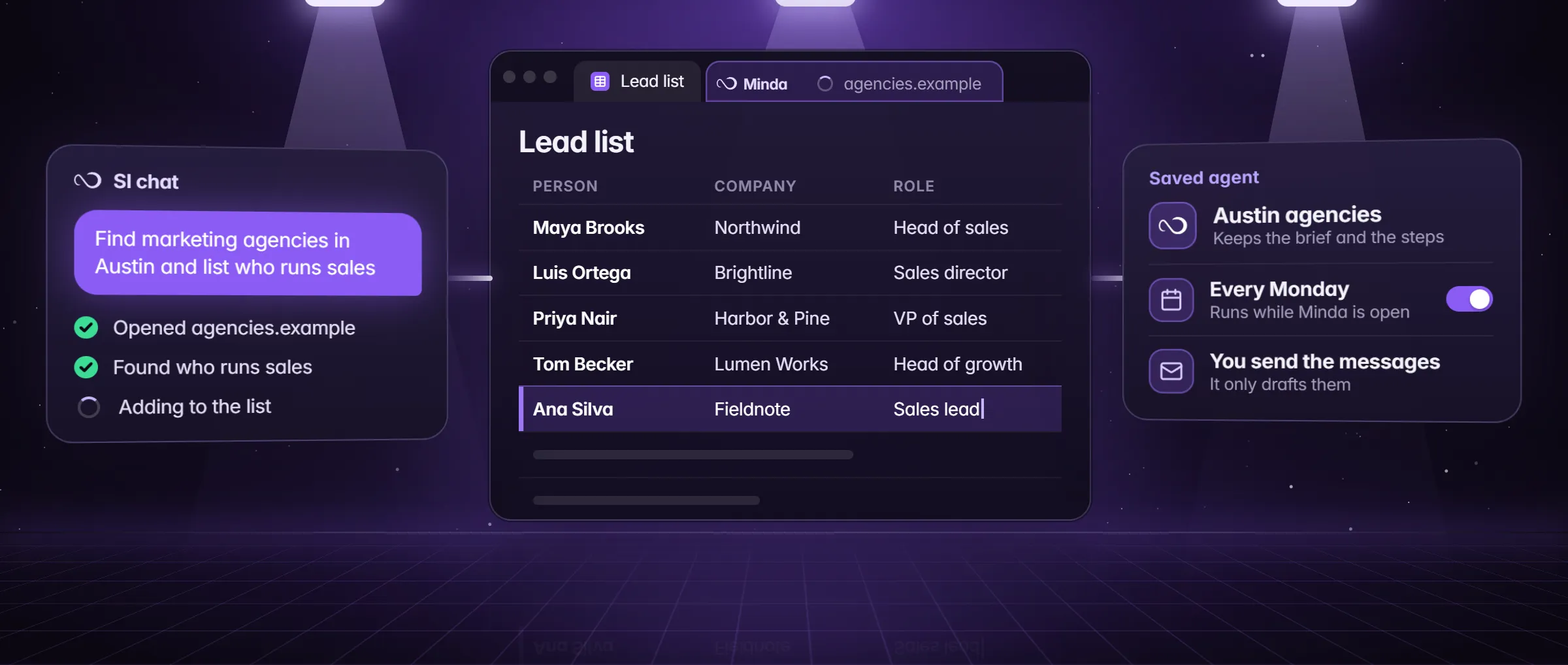
An AI agent does the same reading for you. Minda Super Intelligence is the personal AI agent app for your computer, with a built-in browser: its SI agent opens each company’s pages in tabs you do not see, reads them and writes what it found into the fields you asked for. It is on every plan, with no daily limit. It is research for a person to act on: it reads and writes rows, and it drafts outreach for you to send.
How does the SI agent research a list of companies?
You give it a list, a brief and a place to put the answer, and it does the reading. Six parts make the job.
- A list in. Names or web addresses typed in the chat, a note you attach (the chat can pull in notes, files, @tabs and @bookmarks as context), or a list a scrape task collected from a directory page. Extract data finds the main list on a page and its columns with no AI and no credits.
- A brief. The fields you want (what they do, size, city, the person in the role you sell to, a recent item), the pages it may use, and a stop rule such as "stop after 40 companies".
- The reading. The agent opens each company’s site and the public pages you named, reads them, picks the next link and shows a live checklist; Stop ends the run at any time. A login or a CAPTCHA is handed to you and back. Name a workspace ("in the Sales workspace") and it uses that workspace’s sign-ins on the directories you pay for.
- A sheet out. It writes the rows where you say: in the chat, in a note, or in an Excel or CSV file through Minda’s integrations (Settings → Integrations). Ask for a Source column with one link for each fact, so every cell can be checked.
- More depth where it matters. For the five accounts you will call this week, deep research writes one report each from many pages and cites only what it read; save it as PDF, Word or Slides.
- Social accounts and traffic. In Library → People, paste a list of up to 20 names or right-click a website’s home page, and the AI finds their social accounts, news and discussions. A profile with a website also shows its visits a month and its closest competitors, read with no AI.
An example: 40 HVAC contractors in Dallas–Fort Worth
Ellen Park sells scheduling software to home-service companies. This week she wants forty heating and cooling contractors around Dallas–Fort Worth, each with a reason to call. The companies in this example are made up.
- Ellen opens a state licensing lookup she is allowed to use (an invented one, licenses.example) in her Sales workspace, presses Extract data and keeps the columns Business name and City. A scrape task copies the 40 rows into an Excel file, with no AI.
- She pastes the names into a note called HVAC list and attaches it in the SI chat with a brief: "For each company, open its website and fill: services, residential or commercial, crews if stated, the owner or general manager if the site names one, and one recent item. Add a Source column with the page each fact came from. If a fact is not there, write Not found. Read only. Stop at 40."
- The agent works through the list in tabs she does not see, with a live checklist. After the first five rows she stops it and changes the brief: she wanted residential or commercial as one word.
- She opens the sources of the first ten rows and compares each cell with its page: nine match, and one company’s page was years out of date, which she marks.
- She saves the brief as a saved agent. It keeps the brief and the workspace, so next month’s list is one press.
What can you use it for?
- Account research before a call. One report on a company you are about to call: what it sells, who runs it, what changed lately.
- A territory list. Every company of one kind in one city, with the fields your team sorts by.
- Partner and supplier checks. Whether a company does what its sales page says, read from its own pages.
- Competitor lists. Rival companies, their pages and their social accounts, collected in one place.
- Event and exhibitor lists. A list of exhibitors turned into rows with a fit note for each.
How to use it in Minda
- Open the page that holds your list in Minda, in the workspace whose sign-in it needs, press Extract data and keep the columns you want. Or type or paste the list into a note.
- Open the SI chat (Alt+Q) and attach the note or the list: notes, files and @tabs can be added as context.
- Write the brief: the fields, the pages it may use, a stop rule, where the rows go, and "Source column: one link for each fact, Not found when you cannot find one". Name the workspace if a directory needs your sign-in.
- Run it. Read the live checklist, press Stop if it drifts, and take over any login or CAPTCHA it hands you.
- Open the sources of the first ten rows and compare each cell with its page. Fix the brief, then run the rest.
- Save it as a saved agent, so the next list is one press, and give it a schedule if your list refreshes on a rhythm.
What does it mark as not found, and how do you check a cell?
Tell it to write Not found, because a brief that says nothing invites a guess. An agent reads pages the way you do, and a page can be thin, old or wrong: a contractor’s site last edited three years ago will say so with confidence. Two habits cover most of it. Ask for a Source column, so each fact has the page it came from, and open the sources of the first ten rows before you trust the other thirty. Look hardest at names, titles, counts and dates, the cells a mistake costs you on a call.
Minda quotes no accuracy rate: the source beside the cell is the proof. People keeps published business contacts and never a private person’s phone number, address or age, and the numbers it shows are what each site shows publicly, as Minda last read them, so they can lag a day.
How do you refresh the sheet and share it with a team?
A saved agent keeps the brief, the workspace and the steps, and a schedule runs it, from every 15 minutes to a cron line of your own, while Minda is open on that computer. A weekly run gives you a fresh pass before Monday’s calls, and a run that waits for your OK posts a notice. A scrape task, with no AI and no credits, covers the list side: it copies only the new rows of a directory into a note or a file.
The sheet is an ordinary Excel or CSV file or a note, so share it as you share any file. Minda has no CRM link of its own: a webhook you add yourself can post rows to one, or you import the file there. Team seats add company workspaces with the team’s sites ready and workflows an admin approves.
What does it cost?
Scheduled tasks and saved agents are unlimited on every plan. What you pay for is the AI: each turn of the agent is a request on Minda’s hosted models, from 1 credit a standard message and more on a premium model, with 100 Minda AI credits a month on Free and 2,000 on Pro ($25 a month), or no credits with your own OpenAI, Claude, Gemini or DeepSeek key or Ollama on your computer. Forty companies is many turns, so read the price card before you pick a model. Minda publishes no credits-per-company rate. A plain scrape of the list costs nothing.
Limits
- The agent reads pages and can be wrong, or read a page that is wrong. Ask for a source for each fact and check the first rows before you trust the rest; no accuracy rate is claimed.
- Each social or professional site’s terms rule. Rules and schedules never click or type on chat, social or mail sites, and the agent drafts outreach for you to send.
- There is no CRM link of its own: rows go to a note, an Excel or CSV file, or a webhook you add yourself.
- A scheduled refresh runs only while Minda is open on that computer, and People’s numbers can lag a day.
Questions
Can an AI agent research companies for sales?
Yes. The SI agent opens each company’s pages, reads them and fills the fields in your brief, in the accounts you are signed in to. Ask for a source link for each fact and check the first rows before you trust the rest.
Does it find the decision-maker?
It reads who a company’s own pages name in a role, and writes Not found when they name no one. People keeps published business contacts and never collects a private person’s phone number, address or age.
How much does it cost to research a list?
Each turn of the agent is an AI request: credits on Minda’s hosted models (100 a month on Free, 2,000 on Pro, from 1 credit a standard message), or none with your own key or Ollama. A plain scrape of the list costs no credits.
Can it update my CRM?
Not by itself. It writes to a note or an Excel or CSV file, and a webhook you add yourself can post rows to a CRM. Otherwise import the file with your CRM’s own import.
Sources
- minda-facts.json: ai-agent
docs/marketing/minda-facts.json#ai-agent - minda-facts.json: deep-research
docs/marketing/minda-facts.json#deep-research - minda-facts.json: page-tools
docs/marketing/minda-facts.json#page-tools - minda-facts.json: people
docs/marketing/minda-facts.json#people - minda-facts.json: scheduled-tasks
docs/marketing/minda-facts.json#scheduled-tasks - minda-facts.json: connectors-integrations
docs/marketing/minda-facts.json#connectors-integrations - The People and companies and Integrations rows of the plan table
src/shared/plans.ts - What Minda keeps and sends: section 2
docs/privacy.md