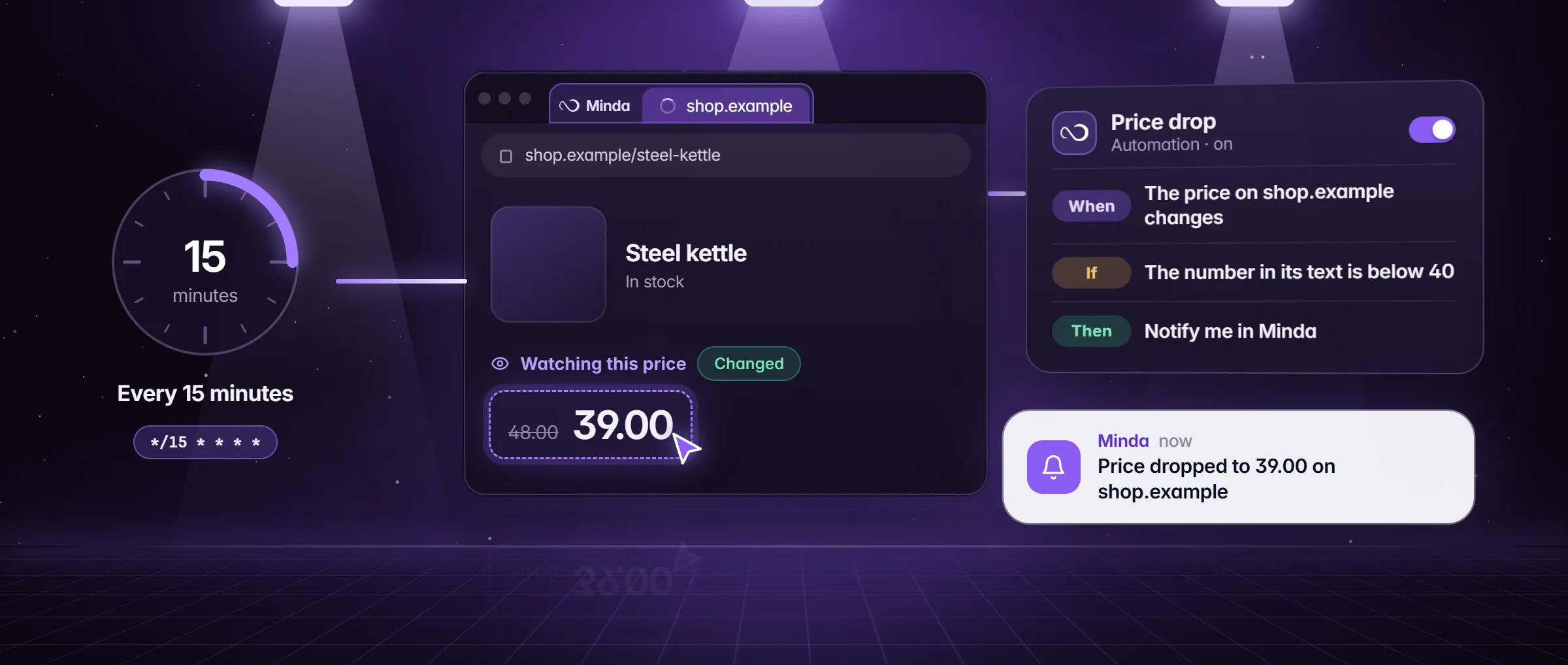
What does it mean to detect a web page change?
Detecting a web page change means a program looks at a page again and again, compares what it sees with what it saw before, and tells you when the difference is one you care about. You stop refreshing the page, and the page tells you.
There are three levels. The crudest is any change at all, which on most pages fires all day because of dates, banners and counters. Sharper is a change in one part of the page. Sharpest is a condition on that part: a number that crosses a line, a word that appears, a new row, a picture that is swapped. Minda Super Intelligence works at the last two levels. The broad guide to watching a page covers which pages can be watched and which tool fits which page; this guide is about the alert.
How does detection work?
Minda reads the part you picked in your open tab, at the rate you choose, and compares it with the last reading. When your condition holds, and still holds after the hold time you set, the alert goes out. The condition is the part you choose, so this table shows which to pick.
| You want to know when | Pick this condition | Example |
|---|---|---|
| A price falls under a line | Drops below a number (Numbers) | Under 40 |
| A price moves by some percent | Drops by a percent, or Rises by a percent (Numbers) | 10 percent |
| A word starts showing | Starts showing words (Text) | In stock |
| A word goes away | Stops showing words (Text) | Sold out |
| A new row or listing appears | An item is added (Elements) | A new listing |
| A picture is swapped | Picture appears or changes (Elements) | A new banner |
An example: a building-permit status in Travis County, Texas
Luis is a homebuilder in Austin, in Travis County, Texas. His permit sits on a county status page (permits.example) that reads "In review" for days, then changes to "Approved" or "Corrections needed". He used to open it three times a day.
He signs in to the page in Minda and keeps its tab open. He right-clicks the status word and chooses Watch this for changes…, names it Permit status, picks Shows any of these words and types Approved and Corrections needed. He sets Check every to 15 min, turns on Only between 8 AM and 6 PM and Stop after the first time, and under Then ticks Notify me in Minda and WhatsApp.
Two days later at 10:40 a WhatsApp message arrives and a notice shows in Minda: the status now reads Corrections needed. The watch turned itself off after it fired, and Luis has the afternoon to fix the drawing.
What can you use it for?
- Status pages. A permit, an order, a visa appointment, a claim or a ticket moving from one word to another.
- Prices. A price that falls under a line or by a percent.
- Stock. A product page that starts showing In stock.
- New rows. A listing, a message or a job added to a list.
- Pictures. A banner, a floor plan or a product photo that is swapped.
- Availability. A booking slot or a ticket that appears on a page.
How to set up a page change alert in Minda
- Open the page in Minda, in the workspace whose sign-in it needs, and keep its tab open.
- Right-click the part of the page to watch and choose Watch this for changes….
- Name it. Under Tell me when press Add a condition and pick one from Numbers, Text or Elements. With no condition, any change to the part counts.
- Under Options set Check every (from 3 seconds to 15 minutes), Count a change after it holds, and Only between if you want office hours.
- Turn on Stop after the first time if one alert is enough.
- Under Then choose where the alert goes, then press Start watching.
- Press Open in Automations to see the rule as steps. Its Test button shows what it would do on a made-up event, Ctrl+S saves an edit, and its switch turns it off.
Where does the alert go, and does it reach my phone?
Telegram, WhatsApp and email already live on your phone, so a rule that sends to one of them puts the alert in your pocket. The account page on your phone also takes push notices, and a cloud automation’s results can reach it while the computer is off when its notification choices include Cloud automations.
- A notice in Minda, with a Windows notification while Minda is behind other windows.
- Your own Telegram bot, set up in Settings → Chatbot, writes to you.
- Email, from your own mail account, set up in Settings → Connectors → Send results.
- WhatsApp, from your own WhatsApp Business number, set up in Settings → Connectors.
- A web address of yours, which gets what changed as JSON.
- A screenshot of the watched part, saved in Downloads → Minda automations.
What if the computer is off?
A page watch on your computer needs Minda open and a tab with the page open, so it cannot run with the computer off. For a public page, use a cloud automation: in Settings → Automations, make one that starts when a public page appears, changes or goes. It runs on Minda’s server, checks every 15 minutes or more, and tells you in Minda, by email or at your webhook. 20 can be on at once on Free and 50 on Pro, and it never reads a page you are signed in to.
A private window triggers nothing. A rule pauses between runs and has an hourly limit, so a page that changes every second is reported as it settles, not at every tick. Monitoring competitor website changes puts these tools to work on a rival’s pages.
Limits
- A page watch runs on your computer only while Minda is open and a tab with the page is open; a page you are signed in to is never watched in the cloud.
- A cloud automation reads public pages and APIs only: 20 turned on at once on Free, 50 on Pro.
- A rule pauses between runs and has an hourly limit, and a part that changes on every load fires every time, so pick a steadier part.
- Private windows trigger nothing.
Questions
How do I get an alert when a web page changes?
Open the page in Minda, right-click the part you care about, choose Watch this for changes, pick a condition and where the alert goes, and press Start watching. It checks while Minda is open, on every plan, with no credits.
Can I be alerted only when a price drops below a number?
Yes. Pick Drops below a number and type it. The alert goes only when the price was at or over that number and is now under it, so it does not repeat while the price stays low.
How often does it check?
As often as every 3 seconds or as rarely as every 15 minutes on your computer, and only between the hours you pick if you set them. A cloud automation checks a public page every 15 minutes or more.
Does change detection cost anything?
No. A watch that only checks and notifies uses no AI model and no Minda AI credits, and rules are unlimited on every plan. Cloud automations are 20 turned on at once on Free and 50 on Pro.
Can I watch a page that needs a login?
Yes, on your computer: the watch reads the page in your open tab, signed in as you. A page you are signed in to is never read in the cloud.
Sources
- minda-facts.json: automations
docs/marketing/minda-facts.json#automations - minda-facts.json: scheduled-tasks
docs/marketing/minda-facts.json#scheduled-tasks - minda-facts.json: notifications
docs/marketing/minda-facts.json#notifications - The Watch for changes dialog and its conditions
src/renderer/components/automation/WatchDialog.tsx - Cloud automations: Key Design Decision 140
docs/project-knowledge.md - What Minda keeps and sends: section 2
docs/privacy.md