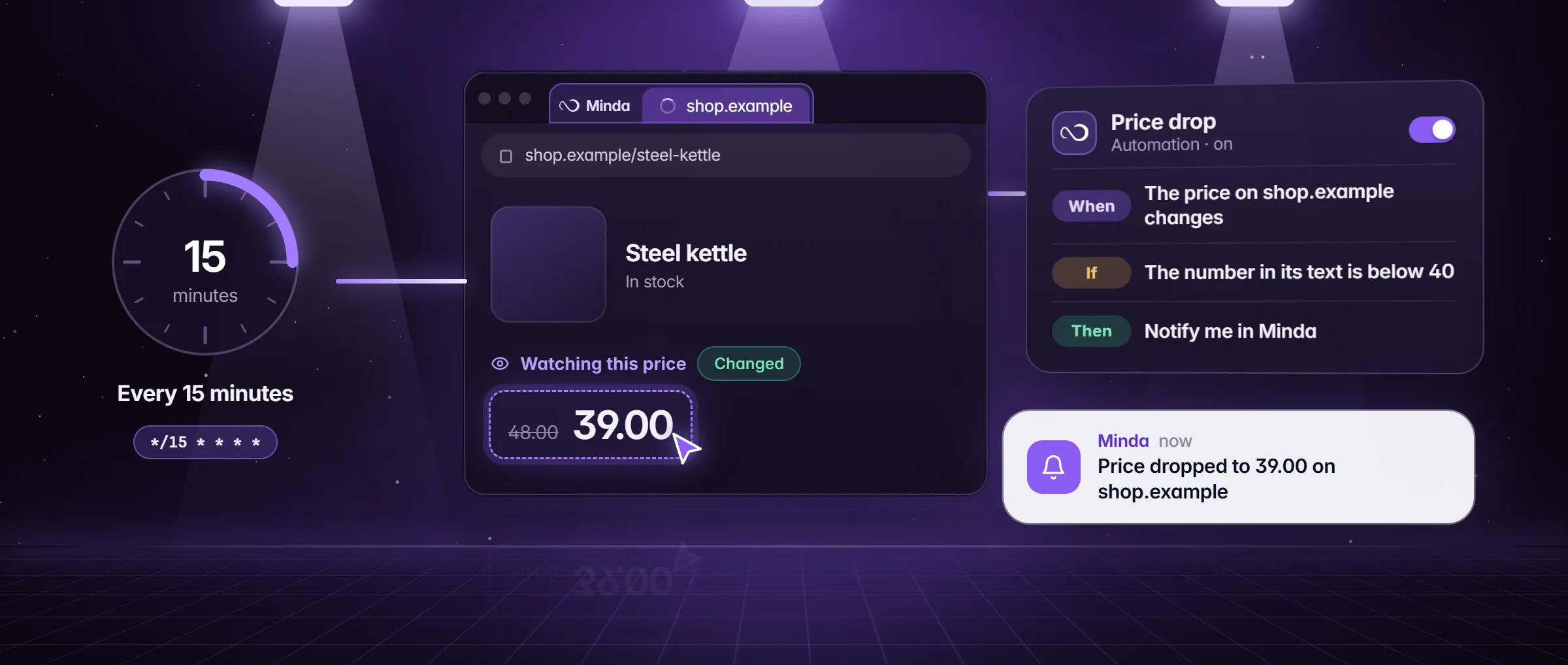
What is a flight scraper?
A flight scraper is a program that opens a page of flight fares, reads the price on it and does the same again later, so you see how a fare moves without refreshing the page yourself. "Scraping" here means only reading values off a page you can already see: an airline, a time, a fare.
Minda Super Intelligence is the personal AI agent app for your computer, with a built-in browser, and it has the pieces on every plan: a scrape task that reads a page on a schedule with no code and no AI model, a page watch that tells you when a number crosses a line, and a scheduled SI check that reads a page and reports in words. This article uses them for fares; the same steps follow any price. The general method is in how to schedule a web scrape without code.
How do a scheduled scrape and a price alert work together?
They are two jobs on the same page, not one chain, and each does what the other cannot. The scrape task is the clock: on every run it loads the page’s address again, in a hidden page of the workspace you made it in, so it reads fresh fares with that workspace’s sign-ins. The alert is the line: it tells you when the price crosses a number you chose. Pick by what you want from the page.
| You want | Use | Loads the page again? | Credits |
|---|---|---|---|
| A record of the fare every few hours or every day | A scrape task (No AI) | Yes, on every run, from every 15 minutes to a cron line | None |
| A notice when the fare falls under your line | A page watch: right-click the fare, Watch this for changes…, Drops below a number | No: it reads the tab you keep open, so the page must refresh itself or you reload it | None |
| A check on a schedule that tells you in words when something changed | A scheduled SI check (Watch a page for changes, in the Tasks panel) | Yes, on every run | An AI request a run: credits, or none with your own key or Ollama |
An example: Chicago to Denver for a March weekend, under $180
Dana Okafor lives in Chicago and wants a Friday to Sunday trip to Denver in March, round trip, for under $180. The names and fares in this example are made up.
- On a Sunday evening Dana opens a fare page for O’Hare to Denver, Friday 12 to Sunday 14 March, in a Travel workspace she keeps for trips. She checks that the route and the dates are in the page’s address.
- She makes a scrape task: Pick on the airline and the fare of the first result, the columns named Airline and Fare, a run every 6 hours, results sent to a note after every run. Test shows the first rows, so she knows it reads the page.
- For the line she tells the SI chat: "Every 6 hours, open this page and tell me when the cheapest round-trip fare is under $180." Minda makes a scheduled check from the sentence.
- Over ten days the note fills with rows: $214 on the first Sunday, $209 on Wednesday, $176 on the next Saturday morning.
- The Saturday check reports a change: a "Changes found" notice in Minda and, with Minda behind other windows, a Windows notification. Dana opens the page, checks the fare and books it herself.
What can you use a scheduled scrape for?
- Hotel rates. The nightly rate for a city and dates, read every day, for a trip you have not booked yet.
- Event tickets. The lowest listed price for a game or a concert, read until the day you decide.
- Rental cars. A weekly rate for a pick-up date and a place, kept as rows you can compare.
- Supplier and shop prices. A page behind your own sign-in works the same way, because the run uses the workspace’s sign-ins.
- A record for later. A note or a CSV file that grows by a row a run, with a Collected at column in the CSV, to look back over weeks.
How to track a fare in Minda
- Open the fare page in Minda, in the workspace whose sign-in you want it to use, and make sure the route and dates are in the page’s address: a scheduled run loads that address again.
- In the Tasks panel choose Scrape a page on a schedule (No AI). Press Pick, click the fare, then the airline, and name each column.
- Press Test. The form reads the page and shows the first rows it found. If it finds nothing, the page had not loaded or the site stopped the read: do not schedule it (see the section on bot checks).
- Choose Send results to: a note, or an Excel or CSV file. Under when to send, choose Send the rows after every run, so each run adds a row.
- Set the repeat, from every 15 minutes to every day or a cron line of your own. Fares do not move by the minute, and every few hours is kinder to the site.
- Press Schedule, then Run now on the new task once. For a notice at your line, right-click the fare, choose Watch this for changes…, pick Drops below a number, type 180, make sure Notify me in Minda is ticked and press Start watching. Or ask the SI chat for a scheduled check.
What if the fare site blocks bots?
Stop there. Many travel sites forbid automated reading in their terms or show a bot check to anything that is not a person, and a page that shows a check shows no fares, so the task reads nothing. Minda does not go around a bot check or a CAPTCHA: the SI agent hands the page to you, and the first run of a scrape task reports what it found, which is how you see that it found nothing.
Read the site’s terms before you schedule anything, keep the schedule gentle, and use the site’s own fare alert if it has one. This is not legal advice, and the site’s terms rule.
Can it book the flight?
It can fill the passenger form, and it does not pay unasked. Tell the SI agent in the chat, "in the Travel workspace, fill the passenger details from my Travel note, for my review", and it fills the form field by field. Ask before paying is on by default: a press that pays, and card or bank details typed, wait for your OK, and "for my review" holds the finishing press too. A login, a CAPTCHA or an age check is handed to you.
Booking is the one part of this article that uses the agent, so it is AI requests: Minda AI credits on Minda’s hosted models (100 a month on Free, 2,000 on Pro, $25 a month), or none with your own OpenAI, Claude, Gemini or DeepSeek key or Ollama on your computer.
Limits
- A scrape task and a page watch run only while Minda is open on your computer; a cloud automation runs while it is off, but reads public pages and APIs only, never a page you are signed in to.
- A page watch reads the tab you keep open and does not load it again: for a fare page that does not refresh itself, use the scrape task or a scheduled SI check.
- A fare site’s terms and bot checks decide whether its page can be read at all. A page that shows a check shows no fares, and Minda does not go around it.
- Minda keeps no price-history chart or database: the history is the rows your task sends to a note or a file.
Questions
Do I need code to scrape flight prices?
No. Open the fare page, press Pick and click the fare: the click becomes a pattern that matches it, with no selector to type. The schedule, the next pages and where the rows go are set in the same form, or by telling the SI chat what you want.
Does tracking a fare cost credits?
A scrape task and a page watch use no AI and no credits on any plan, and scheduled tasks are unlimited. Only a scheduled SI check, or the agent filling a form, is an AI request: credits on Minda’s hosted models, none with your own key or Ollama.
How do I hear about a drop away from my computer?
A page watch can send a message to your own Telegram bot, an email from your own account or a WhatsApp message from your own WhatsApp Business number, each set up once in Settings. It still runs only while Minda is open on your computer.
Is scraping fares allowed?
It depends on the site’s terms of use. Many travel sites restrict automated reading, so read them first, keep the schedule gentle and stop at a bot check. Minda does not go around one. This is not legal advice.
Sources
- minda-facts.json: scheduled-tasks
docs/marketing/minda-facts.json#scheduled-tasks - minda-facts.json: automations
docs/marketing/minda-facts.json#automations - minda-facts.json: notifications
docs/marketing/minda-facts.json#notifications - minda-facts.json: ai-agent
docs/marketing/minda-facts.json#ai-agent - Scheduled checks, scrape jobs and page watches: Key Design Decisions 51, 78 and 138
docs/project-knowledge.md - The Watch dialog: conditions and what happens then
src/renderer/components/automation/WatchDialog.tsx - The Tasks panel templates
src/renderer/lib/task-templates.ts - What Minda keeps and sends: section 2
docs/privacy.md