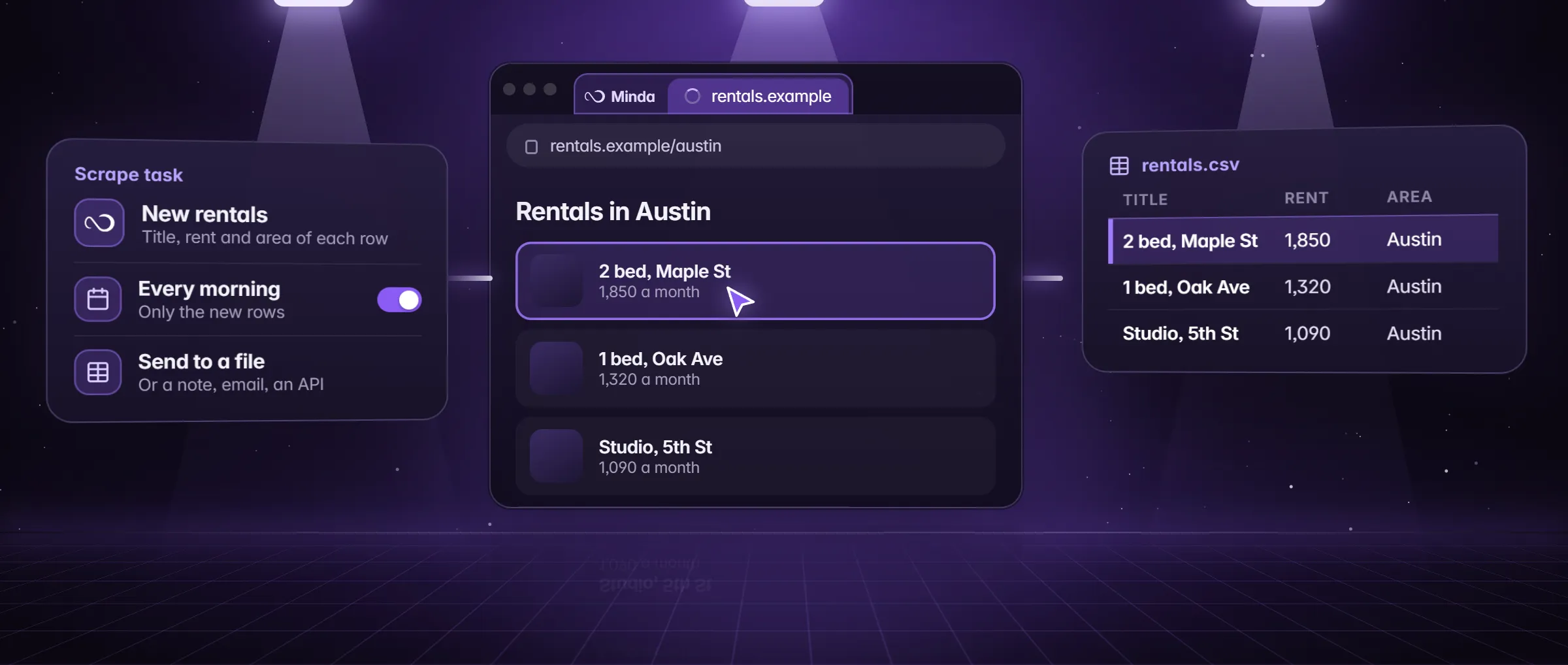
What does it mean to extract a table from a web page?
Extracting a table from a web page means reading its rows and columns into a file, such as Excel or CSV, so the data sits in a spreadsheet instead of on the page. The page keeps its own copy; you get one you can sort, filter and add up.
Copy and paste is enough for a small, plain table. It stops being enough when the table runs over several pages, when cells are merged, when a column holds links and you need the address and not only the words, when the list is a grid of cards and not a real table, or when you need the same table again next week. For those, a program that reads the structure does the job. What is web scraping explains the idea behind it.
How does Extract data find the list and its columns?
Minda Super Intelligence reads the page as it is drawn in your tab, after its scripts have run, so a table built by script is found as well as a plain one. It runs on your computer with no AI model and sends nothing anywhere.
- Real tables. Rows and cells are read the way a browser lays them out, merged cells are spread across the rows they cover, and header cells become the column names.
- Lists and grids. A repeated shape, such as search results or a grid of product cards, is found by comparing the items on the page. Each part that repeats becomes a column.
- Several candidates. A page can hold more than one. Minda ranks them by how full they are, shows the first as "Table 1 of 2" or "List 1 of 3", and Try another list moves to the next.
- Text, links and pictures. A column can hold the words, the address a link points to or the address of a picture. Columns that are mostly empty are left out.
- Your choice. You turn columns on or off, rename them and see a preview of the first 50 rows before anything is saved.
An example: a county tax-rate table into Excel
Rosa is a bookkeeper in Tampa, Florida. Her clients’ files need the tax rates of every taxing area in the county, which the county publishes as a table on a page (millage.example): 85 rows with Area, Code, Rate and a Notice link.
She opens the page in Minda, then chooses Extract data from the three-dot menu. The dialog says "Table 1 of 1" and shows the columns it found: Area, Code, Rate, Notice and, beside it, the address each Notice links to. She turns off Code, renames Rate to Millage rate and presses Excel. Minda asks where to save, and the file opens in Excel as a normal workbook.
The county posts new rates once a year. Rosa presses Schedule… on the same list, chooses Send only when something changed and sets a daily repeat. Quiet days send nothing. The day the rates move, a new Excel file arrives.
What can you use it for?
- Price lists and catalogs. A supplier’s table of parts and prices, in a sheet you can sort.
- Rosters and results. A league table, a class list or a set of race results, with the links kept.
- Directories. Members, vendors or offices listed over several pages, in one file.
- Public statistics. Tax rates, schedules or fee tables that a government or a school publishes on a page.
- Search results. The titles, links and snippets of a results page, for a comparison.
- Several tabs of one kind. Add tabs… reads the same shape from your other open tabs and adds a Source column.
How to extract a table to Excel in Minda
- Open the page in Minda and scroll to the table. If it is a page you sign in to, use the workspace whose sign-in it needs.
- Open the three-dot menu and choose Extract data…, or right-click the page and choose Extract data from this page. Minda reads the live page and shows the biggest table or list.
- Check the preview. If it picked the wrong one, press Try another list. If the list grows as you scroll, press Scroll to load more.
- Turn off the columns you do not need and rename the ones you keep.
- Press Excel for a workbook, CSV for a .csv file, or Copy to paste into any sheet. Save to note and JSON are there too.
- If a field you need is missing, press Schedule…, choose My own fields in the form and press Pick beside a field: point at the value on the page and the click becomes a pattern for every item.
- To keep the file fresh, finish the Schedule… form: tick Only new rows, choose Send results to and set the repeat.
How do you keep the file fresh?
Schedule… turns the list you just chose into a scrape task with the same columns, no AI and no credits. It reads the page again by itself, follows the next pages up to 20, and sends either every new row or only what changed to a note, an Excel or CSV file, your own API, email or WhatsApp. It runs while Minda is open. How to schedule a web scrape without code has every setting.
To judge whether this is worth setting up, the free copy-paste cost calculator turns minutes a day of copying into hours a week and hours a year.
What comes out, and where does it go?
| Format | What you get | Good to know |
|---|---|---|
| Excel | A workbook with the chosen columns | Opens in Excel without a repair prompt; a scrape task writes a new workbook each run |
| CSV | A .csv file with a header row | Opens in any spreadsheet; a cell that starts like a formula is saved as text, so a spreadsheet never runs it |
| Copy | The rows on the clipboard, tab-separated | Paste straight into Excel or Google Sheets |
| A note | The table in your Minda notes, with a card naming the source page | Up to 1,000 rows in one note block |
| JSON | The rows in a .json file | For programs and scripts that read data |
Limits
- A list the detector cannot find needs Pick: press Schedule… and point at the values in the form.
- A run keeps at most 5,000 rows, 50 columns and 2,000 characters a cell, and Scroll to load more scrolls at most 20 times.
- A scheduled run stays on the page’s own site and runs only while Minda is open. Minda SI for Chrome has no Extract data dialog: its right-click Extract data asks the SI chat, which is an AI request.
- A plain extract needs no AI and no credits. The site’s terms still apply, and a CAPTCHA or a bot check stops it.
Questions
Can I copy a table from a website into Excel without code?
Yes. Open the page in Minda, choose Extract data from the three-dot menu, keep the columns you want and press Excel. It finds tables and lists of cards alike, and keeps the link addresses that copy and paste drops.
Does Extract data use AI or cost credits?
No. It reads the page on your computer with no AI model, so it costs no Minda AI credits on any plan, and it sends nothing anywhere. Credits enter only if you ask the SI agent to read fields a pattern cannot.
What if the table has more rows than the page shows?
Press Scroll to load more, up to 20 scrolls with repeats dropped, for a list that grows as you scroll, or Add tabs… for tables of the same shape in other tabs. A scheduled scrape follows the Next link for up to 20 pages.
Can it keep the links in a table, not only the words?
Yes. A column can hold the text, the address a link points to or the address of a picture, so a Notice column can come with the address of each notice. Turn off any column you do not want.
Does Minda SI for Chrome extract tables too?
Its right-click Extract data asks the SI chat to return the page’s tables and lists as Markdown tables, which is an AI request. The no-AI dialog with the Excel and CSV buttons is in the Minda app.
Sources
- minda-facts.json: page-tools
docs/marketing/minda-facts.json#page-tools - minda-facts.json: scheduled-tasks
docs/marketing/minda-facts.json#scheduled-tasks - Extract data, no AI: Key Design Decision 30
docs/project-knowledge.md - Scrape jobs, deliveries and the Schedules page: Key Design Decision 78
docs/project-knowledge.md - The Extract data dialog
src/renderer/components/tools/DataExtractDialog.tsx