What is a web scraper Chrome extension?
A web scraper Chrome extension is a small add-on that reads the page in your current tab and hands back its data as rows, so you do not copy it by hand. You open the page, you start it, it reads what the tab shows, and you take the result away.
That makes it quick for one page at one moment. It works while Chrome and that tab are open, it sees the page with your Chrome sign-ins, and it stops when the tab closes. If you want the same list every Monday, an extension that waits for you to press a button has the wrong shape. The other shape is a scheduled task.
What is a scheduled scrape task, and how does it differ?
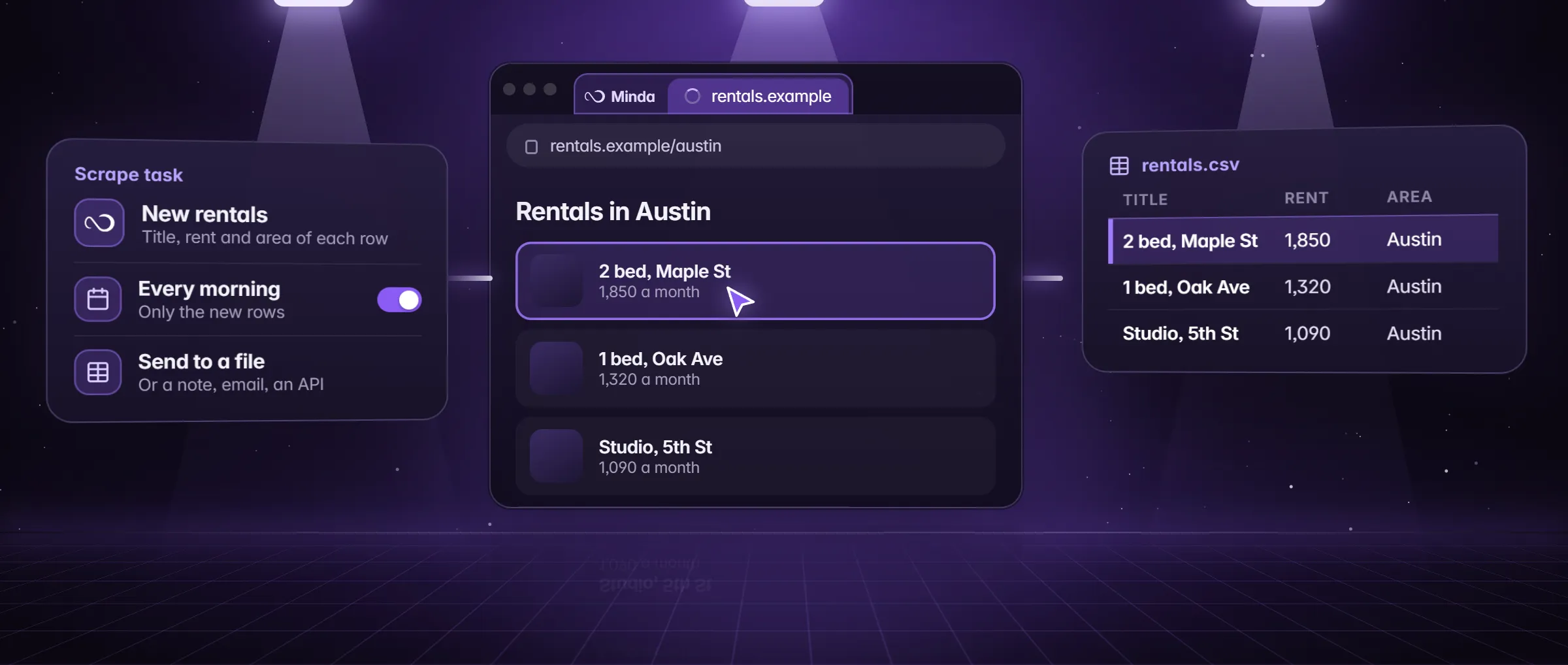
A scheduled scrape task is a job that opens a page by itself on a timetable, reads the list, follows the next pages, keeps only the rows it has not sent before and delivers them to a note, an Excel or CSV file, your own API, email or WhatsApp. Minda Super Intelligence runs it in the Minda app on your computer, in a hidden page of the workspace it was made in, with that workspace’s sign-ins. A plain scrape uses no AI and no credits.
The difference is who starts it and what it keeps. An extension starts when you do and keeps nothing between visits. A task starts on its own, remembers which rows it has sent, and runs while the Minda app is open, whether or not a page is on screen. How to schedule a web scrape without code has every setting.
An example: a Charlotte recruiter’s Monday job-board list
Tomás is a recruiter in Charlotte, North Carolina. Every Monday he wants the new postings from one regional job board (jobs.example) in a sheet before his 9 o’clock call.
With the extension, he opens the board in Chrome, right-clicks the page and chooses Extract data. The SI chat opens in Chrome’s side panel with the page attached and asks for the tables and lists as Markdown tables with a header row. A table of the postings appears in the reply, and he copies it into his sheet. It works this Monday, and every Monday he remembers to do it.
With a scrape task, he opens the board in the Minda app once, presses Extract data, then Schedule…, ticks Only new rows, chooses an Excel file and sets Monday at 8:00. From then on the new postings arrive on their own, and a Monday he forgets costs nothing.
What can you use each one for?
- Extension: a page you are reading. A table or list you want as rows now, from a page already open in Chrome.
- Extension: a one-off. A page you will not visit again, where a schedule would be wasted.
- Extension: a follow-up question. The result is a chat reply, so you can say "keep only the Company and Link columns" or "sort by date".
- Scrape task: a list that grows. Jobs, listings, events or tenders where you want only the new rows each time.
- Scrape task: a feed into something else. Rows sent to a file, your own API, email or WhatsApp with nobody pressing anything.
- Scrape task: a page behind a sign-in. It runs in the workspace’s own sign-ins, on your computer.
How to use each one in Minda
- In Chrome, with Minda SI for Chrome installed and signed in to your account, open the page you want.
- Right-click an empty part of the page and choose Extract data in the Minda SI entry.
- The SI chat opens in the side panel with the page attached. Read the table in the reply and ask for changes in plain words.
- Copy the table from the reply into your sheet. This step saves nothing and schedules nothing.
- For a schedule, open the page in the Minda app instead, in the workspace whose sign-in it needs.
- Open the three-dot menu, choose Extract data…, keep the columns you want and press Schedule…. The Tasks panel’s Scrape a page on a schedule (No AI) opens the same form.
- Tick Only new rows, choose Send results to, set the repeat, press Schedule, then open Schedules and press Run now.
Do both work behind a sign-in, and with the computer off?
The extension reads the tab as Chrome shows it, so a page you are signed in to in Chrome is read with your Chrome sign-in. A menu item sends the page only when you click it. A scrape task reads the page with the sign-ins of the Minda workspace it was made in, on your computer, and a page you are signed in to is never read in the cloud.
Neither runs with the computer off. The extension needs Chrome and the tab, and a scrape task needs the Minda app open. What runs while the computer is off is a cloud automation: it checks a public page or API from Minda’s server every 15 minutes or more and tells you when a phrase appears, changes or goes. It tells you about a change. It does not write rows into a file.
Which one in a minute?
| You want | Use | Runs | Cost |
|---|---|---|---|
| One table from the page in front of you, now | Right-click Extract data in Minda SI for Chrome | In Chrome, while the tab is open | An SI chat message: Minda AI credits, from 1 for a standard message |
| The same table saved as Excel or CSV now, with no AI | Extract data in the Minda app (the three-dot menu) | On your computer, while Minda is open | No credits |
| Every new row of a list, on a timetable | A scrape task in the Minda app | On your computer, every 15 minutes to a cron line, while Minda is open | No credits without an AI step |
| A public page or an API checked while the computer is off | A cloud automation | Minda’s server; 20 turned on at once on Free, 50 on Pro | Its Ask Minda AI steps use credits |
Limits
- Minda SI for Chrome’s Extract data is a question to the SI chat, not a scrape task: it returns tables in a reply, makes no file and has no schedule.
- It is an AI request on Minda AI, from 1 credit for a standard message on a hosted model, and it works only in Chrome while the tab is open.
- Scrape tasks and the no-AI Extract data dialog are in the Minda app, on your computer, while it is open; Minda SI for Chrome has neither.
- A CAPTCHA or a bot check stops either one: Minda does not go around it, and each site’s terms rule.
Questions
Does Minda SI for Chrome’s Extract data use AI credits?
Yes, as any chat question does. The right-click item hands the page to the SI chat, which answers with Markdown tables, so it is an AI request on Minda AI: from 1 credit for a standard message. The no-AI Extract data is the one in the Minda app.
Can a Chrome extension run a scrape on a schedule?
Minda SI for Chrome cannot: its Extract data runs when you click it. A schedule is a scrape task in the Minda app, which runs from every 15 minutes to a cron line of your own while Minda is open, with no AI and no credits.
Which is easier to start with?
The extension: right-click a page and ask. A scrape task takes a minute more to set up, and then needs nobody. If you will want the same list again next week, set up the task the first time.
Can either one read a page behind a login?
Yes. The extension reads the tab with your Chrome sign-in, and a scrape task reads it with the sign-ins of its Minda workspace, on your computer. A page you are signed in to is never read in the cloud.
Sources
- minda-facts.json: scheduled-tasks
docs/marketing/minda-facts.json#scheduled-tasks - minda-facts.json: page-tools
docs/marketing/minda-facts.json#page-tools - minda-facts.json: ai-agent (Minda SI for Chrome’s right-click menu)
docs/marketing/minda-facts.json#ai-agent - Minda SI for Chrome’s right-click menu and what it asks
extension/src/background/messages.ts - Scrape jobs, deliveries and the Schedules page: Key Design Decision 78
docs/project-knowledge.md